

This guide will help you integrate the Geonode API with Selenium to manage proxies effectively while running headless browsers. We will be using Python for this guide.
Prerequisites: Get Proxy Credentials from Geonode
Before setting up a proxy, first, retrieve your proxy credentials from the Geonode dashboard.- Follow this guide: How to Obtain Proxy Server Information
Prerequisites
- Python installed on your system
- Geonode API credentials (username and password)
- ChromeDriver installed (compatible with your Chrome version)
Steps: Setting Up a Proxy in Brave
Follow these steps to configure a proxy in Selenium:Step 1: Set Up a Virtual Environment
Creating a virtual environment helps isolate dependencies and avoid conflicts.Step 2: Install Required Libraries
- Selenium: For browser automation
- python-dotenv: For managing environment variables
- selenium-wire: To handle proxy authentication, as Selenium doesn’t provide it natively
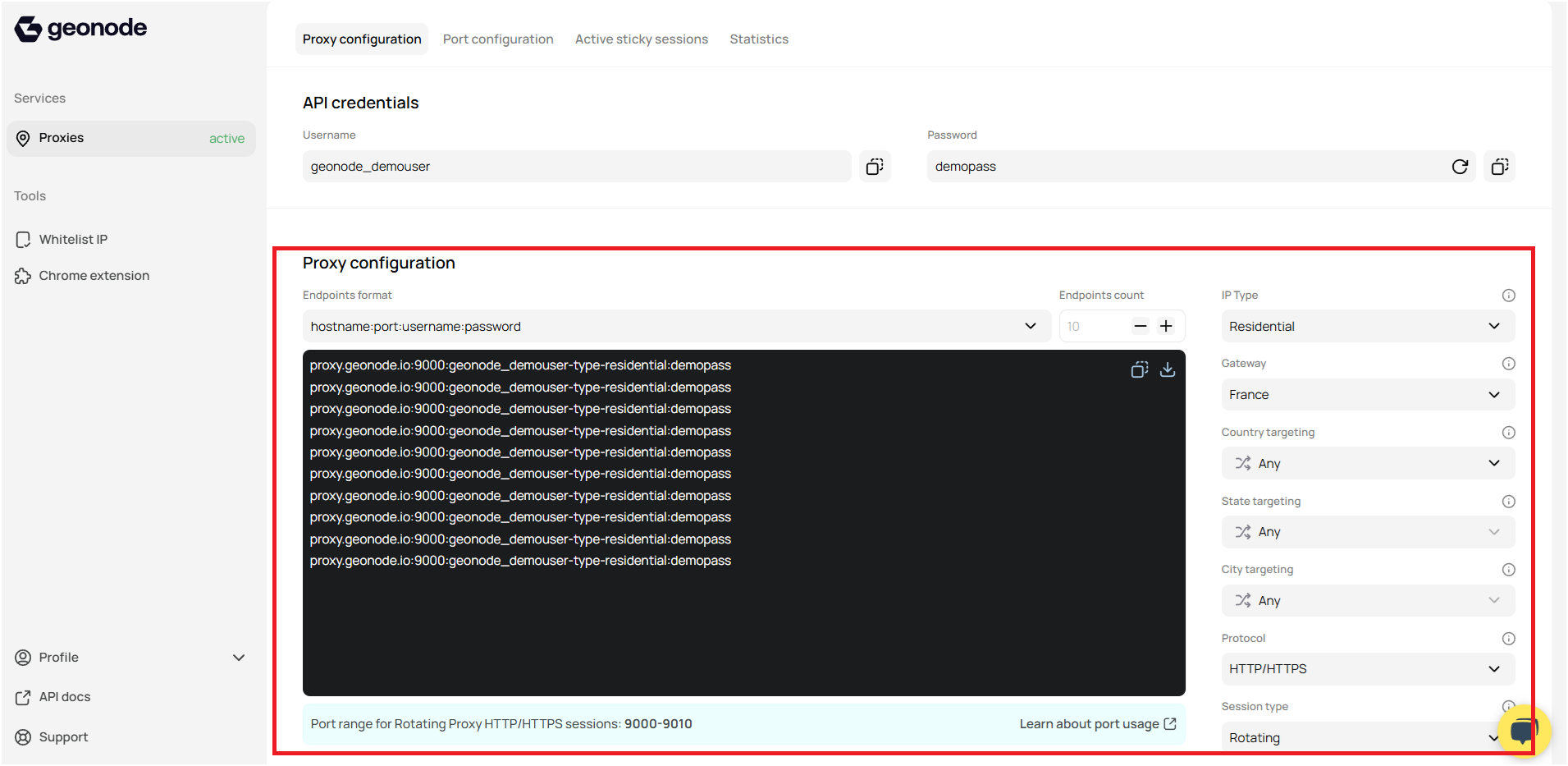
Step 3: Configure Geonode Proxy Endpoint
With the help of the Endpoint Generator, you can easily generate the proxy with specific configurations such as:- Target country
- Port
- Session persistence
- And many more
Step 4: Setting up environment variables
- Create a
.envfile in your project directory. - Add your credentials:
Code Implementation
I. Import
ii. Load environment variables
iii. Configure Proxy options
iv. Configure Browser Options
v. Initialize Browser
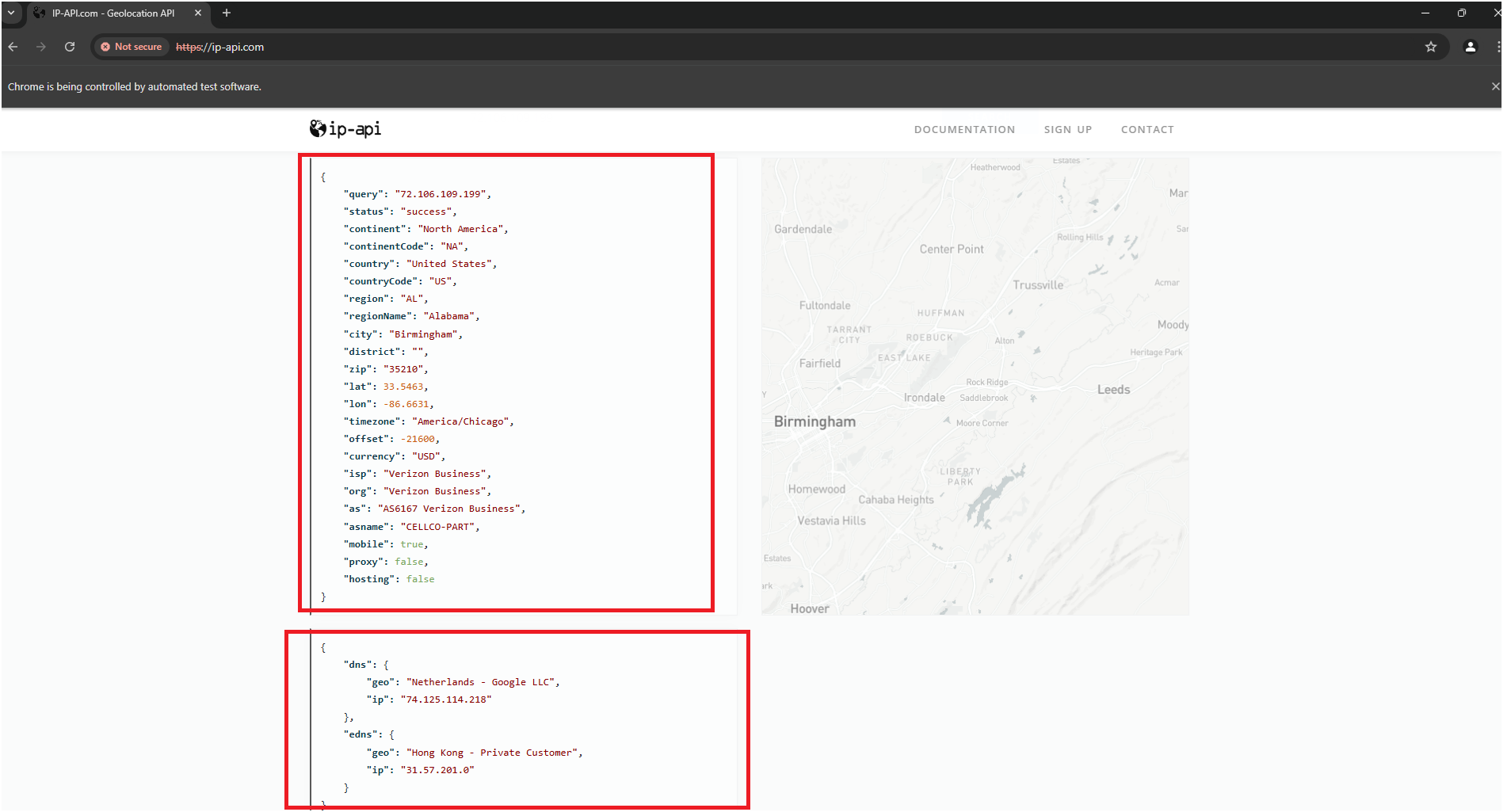
vi. Open IP address website to check
vii. Keep the browser open
viii. Quit the browser
xi. Full Code
x. Folder Stucture
Source Code
You can find the full source code for this script on GitHub at the following link: https://github.com/geonodecom/proxy-testing-toolkit/tree/automation-framework/seleniumUse Cases of Integrating Geonode with Selenium
Integrating Geonode with Selenium can be beneficial for a wide range of applications, including:- Web Scraping: Collect data from websites while maintaining anonymity to avoid IP bans.
- Ad Verification: Test and verify advertisements across different geographies to ensure proper delivery.
- Price Monitoring: Track pricing changes on e-commerce platforms without getting blocked.
- SEO Monitoring: Monitor search engine results and competitor websites without affecting personalized search results.
- Market Research: Gather data from various sources to analyze trends and competitor performance.
- Social Media Automation: Manage multiple social media accounts while avoiding detection.
- Fraud Detection: Simulate real-world traffic for security testing and fraud detection systems.
Troubleshooting Tips
- Timeout Errors: Check if the proxy is active or switch to another proxy.
- Authentication Issues: Double-check your Geonode API credentials.
- Incompatible ChromeDriver: Ensure ChromeDriver matches your Chrome version.
FAQs
How do I handle proxy authentication pop-ups?
How do I handle proxy authentication pop-ups?
The authentication details are embedded in the proxy URL, so no pop-up should appear.
Can I use Geonode with Firefox in Selenium?
Can I use Geonode with Firefox in Selenium?
Yes, but you need to adjust the proxy settings using Firefox profiles.
What if my IP doesn't change?
What if my IP doesn't change?
Verify the proxy server details and ensure Geonode proxies are correctly configured.