> ## Documentation Index
> Fetch the complete documentation index at: https://geonode.mintlify.site/llms.txt
> Use this file to discover all available pages before exploring further.
# Windows
> How to setup geonode proxy server in Windows 10/11
***
This guide will help you configure a Geonode proxy in the Windows 10/11.
***
## Prerequisites: Get Proxy Credentials from Geonode
Before setting up a proxy, first, retrieve your proxy credentials from the Geonode dashboard.
* Follow this guide: [How to Obtain Proxy Server Information](/proxy-setup/prerequisites/proxy-server-information)
***
## **Steps: Setting Up a Proxy in Windows 10/11**
Follow these steps to configure a proxy in Windows:
### **Step 1: Open Proxy Settings in Windows**
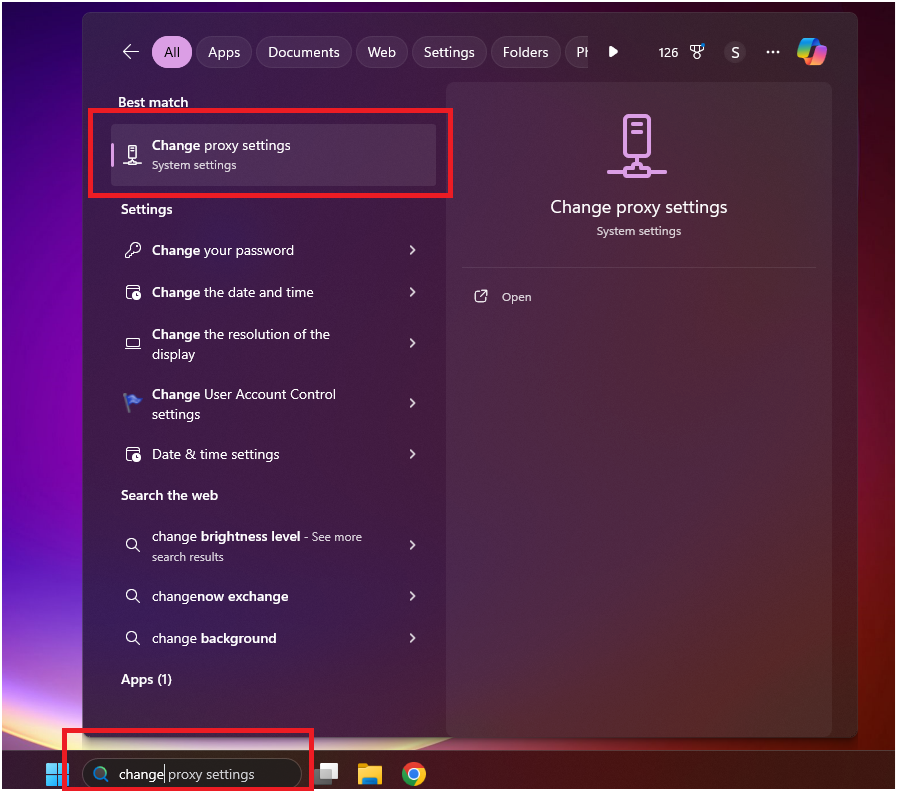
* Click the **Windows Search Bar** and type: **"Change proxy settings"**
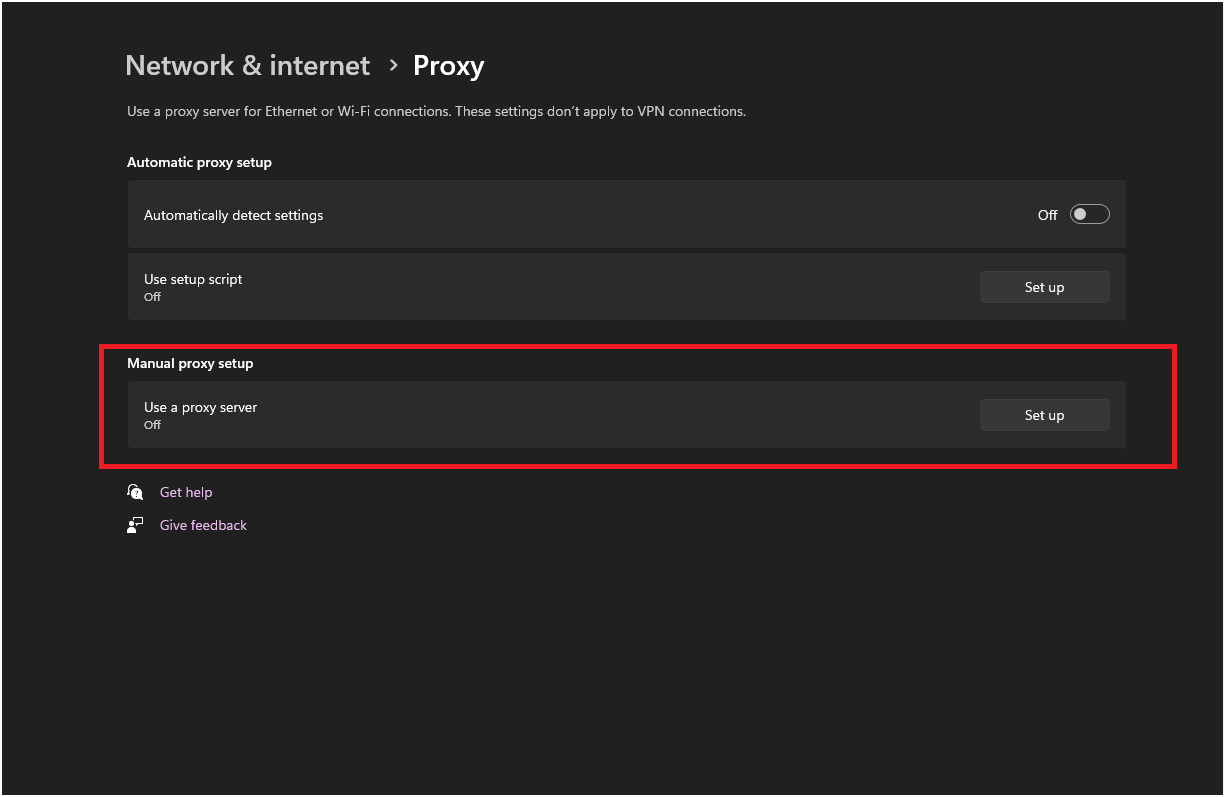
 * Click on **Manual Proxy Setup**
 ### **Step 2: Enter Proxy Details**
* A popup window will open:
### **Step 2: Enter Proxy Details**
* A popup window will open:
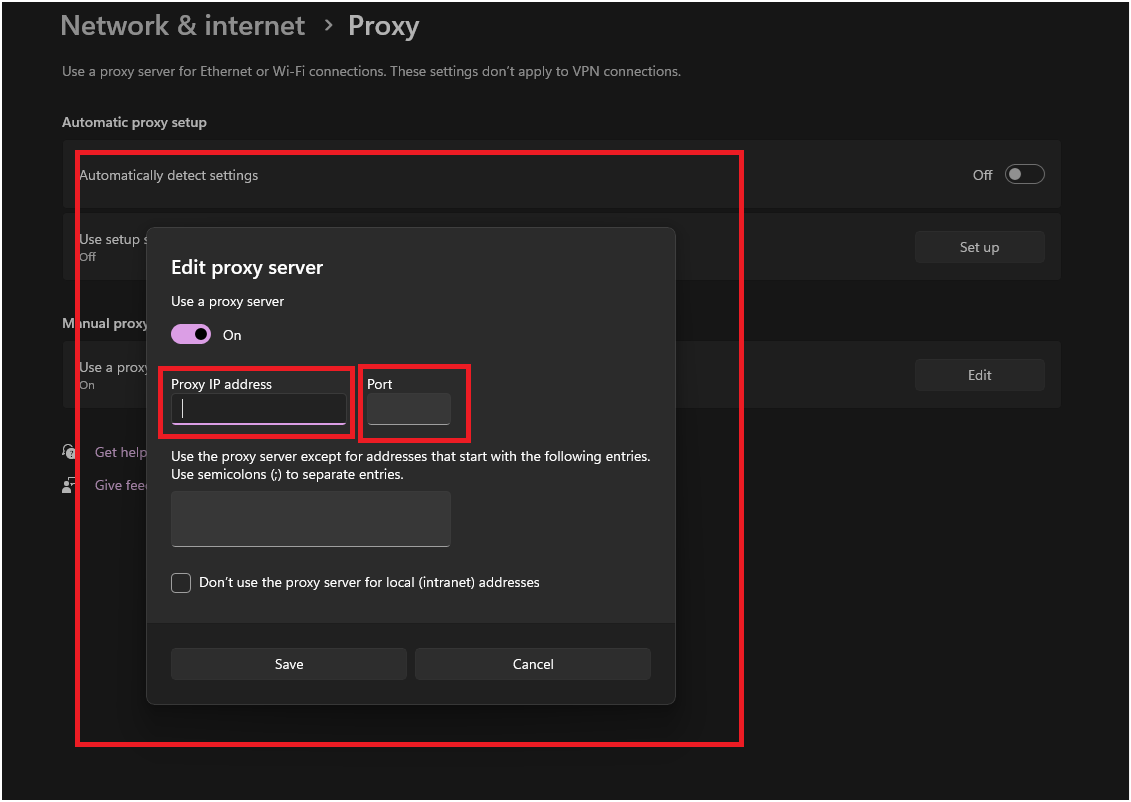 * Enter the **Proxy IP** and **Port** you copied from the Geonode Dashboard.
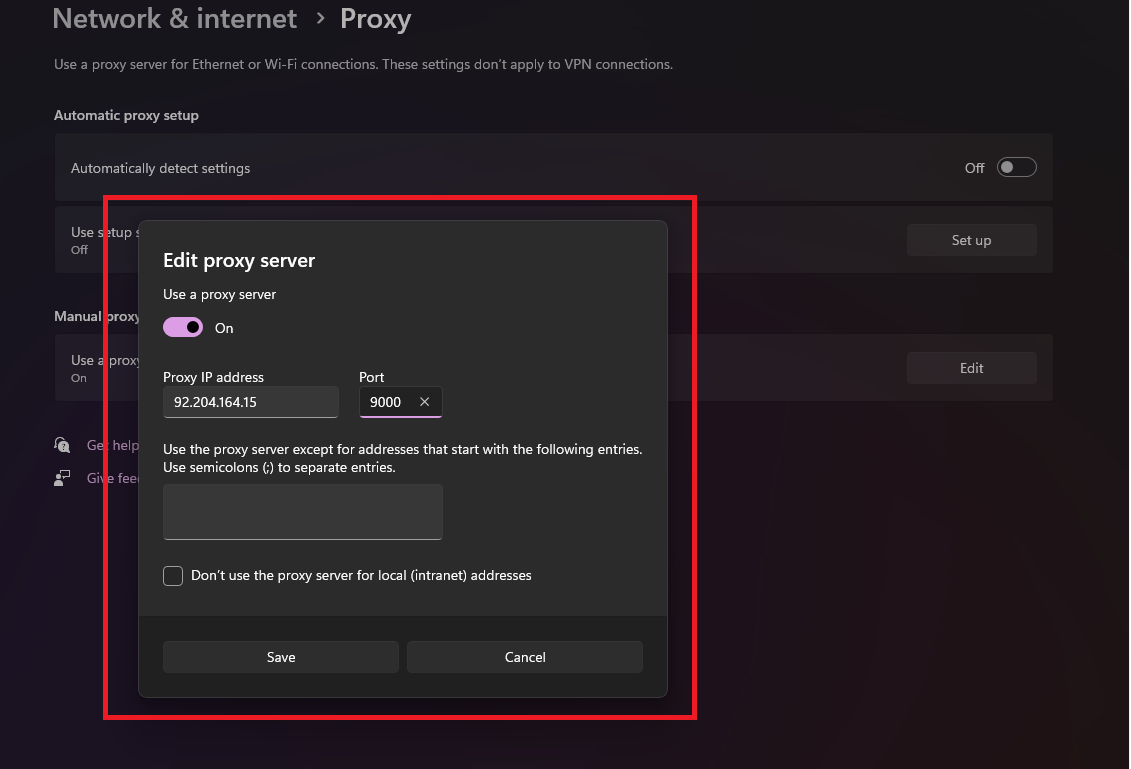 * Click **Save**.
Note: Once the Proxy server is set up, a prompt for example on google chrome or other applications or programs on the system may request to provide proxy authentication which is the proxy username and password. This is required to proceed using the proxies. If you do not wish to provide authentication, you can consider to whitelist your IP. Refer to this guide for [How to Whitelist an IP](/proxy-setup/advance-configuration/whitelist-ip)
***
## **Verify Proxy Connection**
To ensure the proxy is working, check your IP address using an online tool or follow this guide:
* [Verify Proxy Connection](/proxy-setup/verify-proxy-connection)
***
If you encounter any issues, refer to the [**troubleshooting section**](/knowledge-base/troubleshooting/proxy-not-working) or [**Geonode support**](/additional-resources/support).
***
## **FAQs**
If your connection fails, check the following:
* Ensure that your proxy credentials (IP, Port, Username, Password) are correct.
* Verify that your proxy is active in the Geonode Dashboard.
* Try another proxy format if the selected one isn't working.
* Refer to this guide for troubleshooting: [Troubleshooting Proxy Connection Issues](/knowledge-base/troubleshooting/pages-not-loading)
* You may be using a Sticky Session proxy that keeps the same IP for a certain duration.
* If using a Rotating Session, verify that your requests are being routed through the proxy correctly.
* Check your connection using an IP verification tool: [Verify Proxy Connection](https://ip-api.com/)
* Some websites detect **frequent IP changes** and show CAPTCHAs as a security measure.
* Use Sticky Sessions if you need a stable connection.
* Try switching to a mobile or residential proxy for lower detection rates.
* High latency can occur if the proxy server is far from your location.
* Try using a different proxy region to improve speed.
* Reduce the number of simultaneous requests to avoid overloading the proxy.
* This can happen if the proxy authentication credentials are not correctly stored or passed by your browser or application. Ensure that the correct username and password are saved in your proxy settings.
* Or you can whitelist your IP. Refer to this guide for [How to Whitelist an IP](/proxy-setup/advance-configuration/whitelist-ip)
* Click **Save**.
Note: Once the Proxy server is set up, a prompt for example on google chrome or other applications or programs on the system may request to provide proxy authentication which is the proxy username and password. This is required to proceed using the proxies. If you do not wish to provide authentication, you can consider to whitelist your IP. Refer to this guide for [How to Whitelist an IP](/proxy-setup/advance-configuration/whitelist-ip)
***
## **Verify Proxy Connection**
To ensure the proxy is working, check your IP address using an online tool or follow this guide:
* [Verify Proxy Connection](/proxy-setup/verify-proxy-connection)
***
If you encounter any issues, refer to the [**troubleshooting section**](/knowledge-base/troubleshooting/proxy-not-working) or [**Geonode support**](/additional-resources/support).
***
## **FAQs**
If your connection fails, check the following:
* Ensure that your proxy credentials (IP, Port, Username, Password) are correct.
* Verify that your proxy is active in the Geonode Dashboard.
* Try another proxy format if the selected one isn't working.
* Refer to this guide for troubleshooting: [Troubleshooting Proxy Connection Issues](/knowledge-base/troubleshooting/pages-not-loading)
* You may be using a Sticky Session proxy that keeps the same IP for a certain duration.
* If using a Rotating Session, verify that your requests are being routed through the proxy correctly.
* Check your connection using an IP verification tool: [Verify Proxy Connection](https://ip-api.com/)
* Some websites detect **frequent IP changes** and show CAPTCHAs as a security measure.
* Use Sticky Sessions if you need a stable connection.
* Try switching to a mobile or residential proxy for lower detection rates.
* High latency can occur if the proxy server is far from your location.
* Try using a different proxy region to improve speed.
* Reduce the number of simultaneous requests to avoid overloading the proxy.
* This can happen if the proxy authentication credentials are not correctly stored or passed by your browser or application. Ensure that the correct username and password are saved in your proxy settings.
* Or you can whitelist your IP. Refer to this guide for [How to Whitelist an IP](/proxy-setup/advance-configuration/whitelist-ip)