> ## Documentation Index
> Fetch the complete documentation index at: https://geonode.mintlify.site/llms.txt
> Use this file to discover all available pages before exploring further.
# Selenium
> How to Integrate Geonode API with Selenium
***
This guide will help you integrate the Geonode API with Selenium to manage proxies effectively while running headless browsers.
**We will be using Python for this guide.**
***
## Prerequisites: Get Proxy Credentials from Geonode
Before setting up a proxy, first, retrieve your proxy credentials from the Geonode dashboard.
* Follow this guide: [How to Obtain Proxy Server Information](/proxy-setup/prerequisites/proxy-server-information)
***
## **Prerequisites**
* Python installed on your system
* Geonode API credentials (username and password)
* ChromeDriver installed (compatible with your Chrome version)
## **Steps: Setting Up a Proxy in Brave**
Follow these steps to configure a proxy in Selenium:
### **Step 1: Set Up a Virtual Environment**
Creating a virtual environment helps isolate dependencies and avoid conflicts.
```
# Install virtualenv if not already installed
pip install virtualenv
# Create a virtual environment
python -m venv .venv
# Activate the virtual environment
## On Windows
.venv\Scripts\activate
## On macOS/Linux
source .venv/bin/activate
```
### **Step 2: Install Required Libraries**
```
pip install selenium python-dotenv selenium-wire
```
* **Selenium:** For browser automation
* **python-dotenv:** For managing environment variables
* **selenium-wire:** To handle proxy authentication, as Selenium doesn't provide it natively
### **Step 3: Configure Geonode Proxy Endpoint**
With the help of the **Endpoint Generator**, you can easily generate the proxy with specific configurations such as:
* Target country
* Port
* Session persistence
* And many more
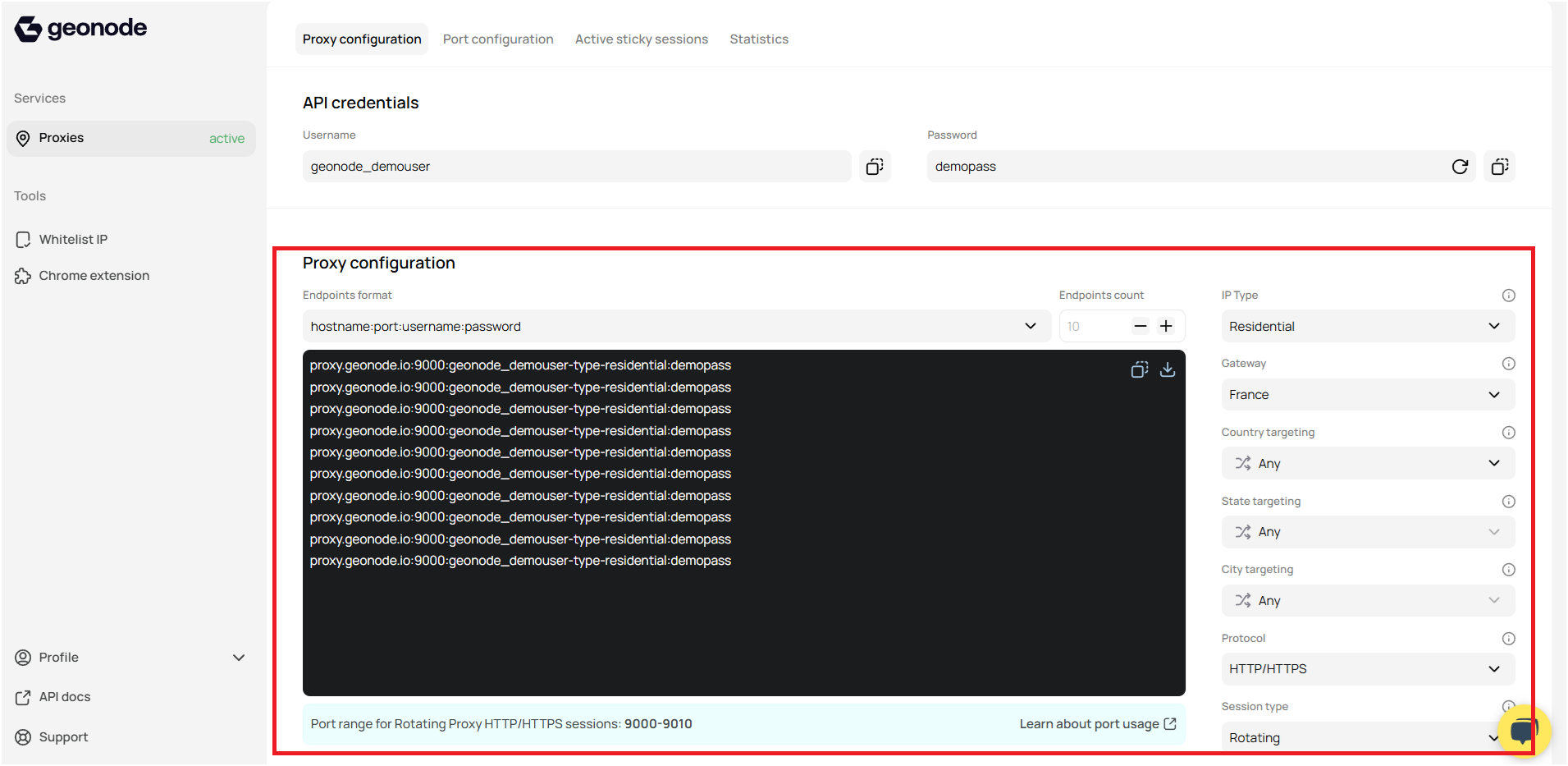 Refer to the guide **[How to Use the Endpoint Generator](https://docs.google.com/document/d/11YaEtmKbMP9d5lclO4vjySjtwmuW8i-m-l1qN5lNsXY/edit?usp=sharing)** to generate your endpoints.
### **Step 4: Setting up environment variables**
1. Create a `.env` file in your project directory.
2. Add your credentials:
```
GEONODE_USERNAME=your_geonode_username
GEONODE_PASSWORD=your_geonode_password
GEONODE_HOST=proxy.geonode.io
GEONODE_PORT=9000
GEONODE_DNS=your_geonode_dns
```
Never upload your `.env` file to the internet.
## **Code Implementation**
### I. Import
```
import os
from dotenv import load_dotenv
from seleniumwire import webdriver
from selenium.webdriver.chrome.options import Options
```
### ii. Load environment variables
```
load_dotenv()
proxy_host = os.getenv('GEONODE_HOST')
proxy_port = os.getenv('GEONODE_PORT')
username = os.getenv('GEONODE_USERNAME')
password = os.getenv('GEONODE_PASSWORD')
GEONODE_DNS = os.getenv('GEONODE_PROXY')
```
### iii. Configure Proxy options
```
proxy_options = {
'proxy': {
'http': f'http://{username}:{password}@{proxy_host}:{proxy_port}',
'https': f'https://{username}:{password}@{proxy_host}:{proxy_port}',
}
}
```
### iv. Configure Browser Options
```
chrome_options = Options()
chrome_options.add_argument('--disable-gpu')
chrome_options.add_argument('--start-maximized')
chrome_options.add_argument('--ignore-certificate-errors')
```
### v. Initialize Browser
```
browser = webdriver.Chrome(seleniumwire_options=proxy_options, options=chrome_options)
```
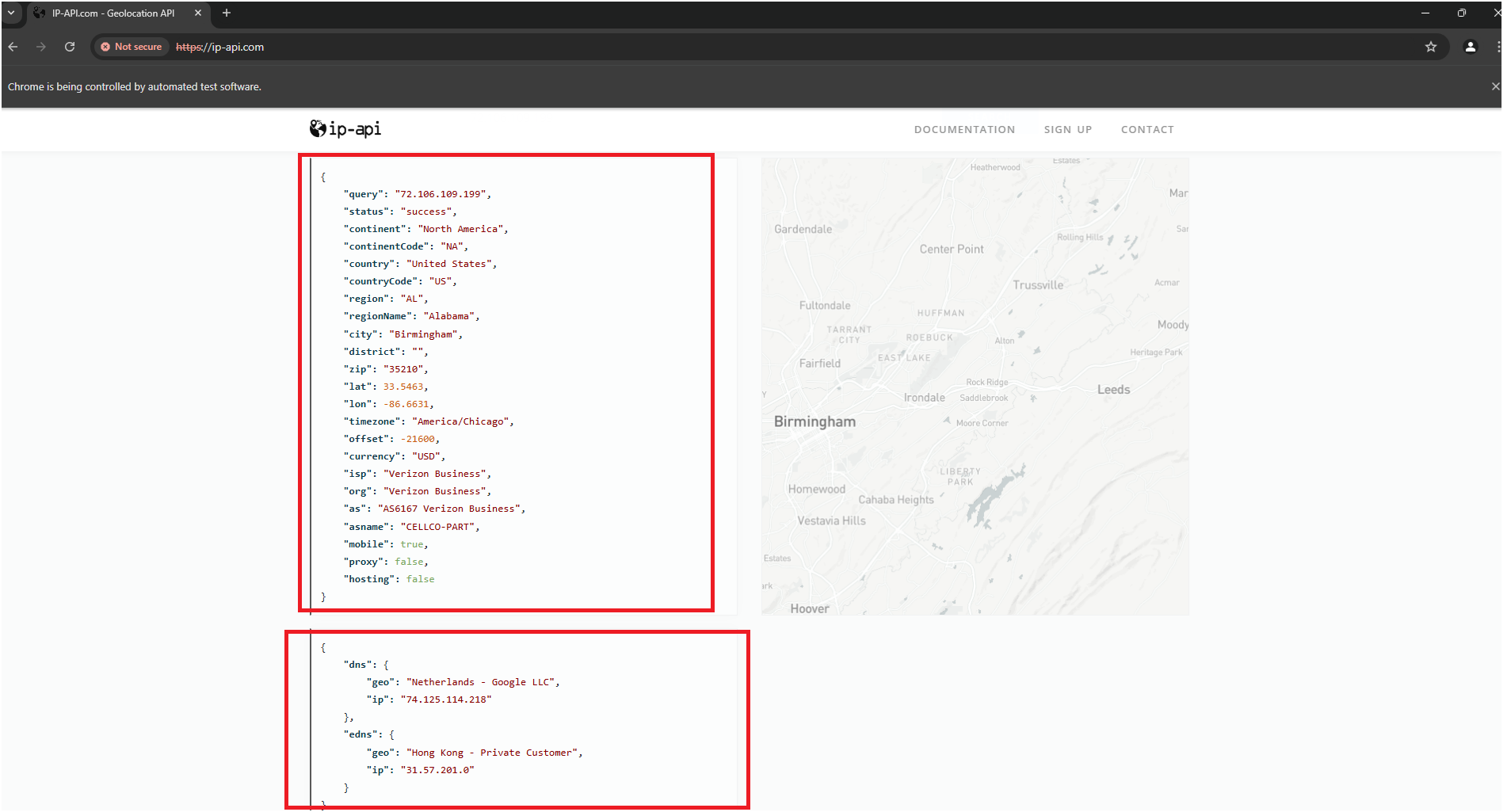
### vi. Open IP address website to check
```
urlToGet = "https://ip-api.com/"
browser.get(urlToGet)
```
**Output:**
Refer to the guide **[How to Use the Endpoint Generator](https://docs.google.com/document/d/11YaEtmKbMP9d5lclO4vjySjtwmuW8i-m-l1qN5lNsXY/edit?usp=sharing)** to generate your endpoints.
### **Step 4: Setting up environment variables**
1. Create a `.env` file in your project directory.
2. Add your credentials:
```
GEONODE_USERNAME=your_geonode_username
GEONODE_PASSWORD=your_geonode_password
GEONODE_HOST=proxy.geonode.io
GEONODE_PORT=9000
GEONODE_DNS=your_geonode_dns
```
Never upload your `.env` file to the internet.
## **Code Implementation**
### I. Import
```
import os
from dotenv import load_dotenv
from seleniumwire import webdriver
from selenium.webdriver.chrome.options import Options
```
### ii. Load environment variables
```
load_dotenv()
proxy_host = os.getenv('GEONODE_HOST')
proxy_port = os.getenv('GEONODE_PORT')
username = os.getenv('GEONODE_USERNAME')
password = os.getenv('GEONODE_PASSWORD')
GEONODE_DNS = os.getenv('GEONODE_PROXY')
```
### iii. Configure Proxy options
```
proxy_options = {
'proxy': {
'http': f'http://{username}:{password}@{proxy_host}:{proxy_port}',
'https': f'https://{username}:{password}@{proxy_host}:{proxy_port}',
}
}
```
### iv. Configure Browser Options
```
chrome_options = Options()
chrome_options.add_argument('--disable-gpu')
chrome_options.add_argument('--start-maximized')
chrome_options.add_argument('--ignore-certificate-errors')
```
### v. Initialize Browser
```
browser = webdriver.Chrome(seleniumwire_options=proxy_options, options=chrome_options)
```
### vi. Open IP address website to check
```
urlToGet = "https://ip-api.com/"
browser.get(urlToGet)
```
**Output:**
 ### vii. Keep the browser open
```
input("Press Enter to close the browser...")
```
### viii. Quit the browser
```
browser.quit()
```
### xi. Full Code
```
import os
from dotenv import load_dotenv
from seleniumwire import webdriver
from selenium.webdriver.chrome.options import Options
load_dotenv()
proxy_host = os.getenv('GEONODE_HOST')
proxy_port = os.getenv('GEONODE_PORT')
username = os.getenv('GEONODE_USERNAME')
password = os.getenv('GEONODE_PASSWORD')
GEONODE_DNS = os.getenv('GEONODE_PROXY')
proxy_options = {
'proxy': {
'http': f'http://{username}:{password}@{proxy_host}:{proxy_port}',
'https': f'https://{username}:{password}@{proxy_host}:{proxy_port}',
}
}
chrome_options = Options()
chrome_options.add_argument('--disable-gpu')
chrome_options.add_argument('--start-maximized')
chrome_options.add_argument('--ignore-certificate-errors')
browser = webdriver.Chrome(seleniumwire_options=proxy_options, options=chrome_options)
urlToGet = "https://ip-api.com/"
browser.get(urlToGet)
input("Press Enter to close the browser...")
browser.quit()
```
### x. Folder Stucture
```
Project Root
├── .venv/
├── .env
└── app.py
```
## **Source Code**
You can find the full source code for this script on GitHub at the following link:
[https://github.com/geonodecom/proxy-testing-toolkit/tree/automation-framework/selenium](https://github.com/geonodecom/proxy-testing-toolkit/tree/automation-framework/selenium)
***
## **Use Cases of Integrating Geonode with Selenium**
Integrating Geonode with Selenium can be beneficial for a wide range of applications, including:
1. **Web Scraping:** Collect data from websites while maintaining anonymity to avoid IP bans.
2. **Ad Verification:** Test and verify advertisements across different geographies to ensure proper delivery.
3. **Price Monitoring:** Track pricing changes on e-commerce platforms without getting blocked.
4. **SEO Monitoring:** Monitor search engine results and competitor websites without affecting personalized search results.
5. **Market Research:** Gather data from various sources to analyze trends and competitor performance.
6. **Social Media Automation:** Manage multiple social media accounts while avoiding detection.
7. **Fraud Detection:** Simulate real-world traffic for security testing and fraud detection systems.
Explore more use cases here *[https://geonode.com/use-cases](https://geonode.com/use-cases)*
***
## **Troubleshooting Tips**
* **Timeout Errors:** Check if the proxy is active or switch to another proxy.
* **Authentication Issues:** Double-check your Geonode API credentials.
* **Incompatible ChromeDriver:** Ensure ChromeDriver matches your Chrome version.
If you encounter any issues, refer to the [**troubleshooting section**](/knowledge-base/troubleshooting/proxy-not-working) or [**Geonode support**](/additional-resources/support).
***
## **FAQs**
The authentication details are embedded in the proxy URL, so no pop-up should appear.
Yes, but you need to adjust the proxy settings using Firefox profiles.
Verify the proxy server details and ensure Geonode proxies are correctly configured.
### vii. Keep the browser open
```
input("Press Enter to close the browser...")
```
### viii. Quit the browser
```
browser.quit()
```
### xi. Full Code
```
import os
from dotenv import load_dotenv
from seleniumwire import webdriver
from selenium.webdriver.chrome.options import Options
load_dotenv()
proxy_host = os.getenv('GEONODE_HOST')
proxy_port = os.getenv('GEONODE_PORT')
username = os.getenv('GEONODE_USERNAME')
password = os.getenv('GEONODE_PASSWORD')
GEONODE_DNS = os.getenv('GEONODE_PROXY')
proxy_options = {
'proxy': {
'http': f'http://{username}:{password}@{proxy_host}:{proxy_port}',
'https': f'https://{username}:{password}@{proxy_host}:{proxy_port}',
}
}
chrome_options = Options()
chrome_options.add_argument('--disable-gpu')
chrome_options.add_argument('--start-maximized')
chrome_options.add_argument('--ignore-certificate-errors')
browser = webdriver.Chrome(seleniumwire_options=proxy_options, options=chrome_options)
urlToGet = "https://ip-api.com/"
browser.get(urlToGet)
input("Press Enter to close the browser...")
browser.quit()
```
### x. Folder Stucture
```
Project Root
├── .venv/
├── .env
└── app.py
```
## **Source Code**
You can find the full source code for this script on GitHub at the following link:
[https://github.com/geonodecom/proxy-testing-toolkit/tree/automation-framework/selenium](https://github.com/geonodecom/proxy-testing-toolkit/tree/automation-framework/selenium)
***
## **Use Cases of Integrating Geonode with Selenium**
Integrating Geonode with Selenium can be beneficial for a wide range of applications, including:
1. **Web Scraping:** Collect data from websites while maintaining anonymity to avoid IP bans.
2. **Ad Verification:** Test and verify advertisements across different geographies to ensure proper delivery.
3. **Price Monitoring:** Track pricing changes on e-commerce platforms without getting blocked.
4. **SEO Monitoring:** Monitor search engine results and competitor websites without affecting personalized search results.
5. **Market Research:** Gather data from various sources to analyze trends and competitor performance.
6. **Social Media Automation:** Manage multiple social media accounts while avoiding detection.
7. **Fraud Detection:** Simulate real-world traffic for security testing and fraud detection systems.
Explore more use cases here *[https://geonode.com/use-cases](https://geonode.com/use-cases)*
***
## **Troubleshooting Tips**
* **Timeout Errors:** Check if the proxy is active or switch to another proxy.
* **Authentication Issues:** Double-check your Geonode API credentials.
* **Incompatible ChromeDriver:** Ensure ChromeDriver matches your Chrome version.
If you encounter any issues, refer to the [**troubleshooting section**](/knowledge-base/troubleshooting/proxy-not-working) or [**Geonode support**](/additional-resources/support).
***
## **FAQs**
The authentication details are embedded in the proxy URL, so no pop-up should appear.
Yes, but you need to adjust the proxy settings using Firefox profiles.
Verify the proxy server details and ensure Geonode proxies are correctly configured.