> ## Documentation Index
> Fetch the complete documentation index at: https://geonode.mintlify.site/llms.txt
> Use this file to discover all available pages before exploring further.
# Whitelist IP
> How to Whitelist your IP address.
***
This guide will help you whitelist your IP address, making sure you can access your proxy services without having to enter your credentials again and again.
## **Point to Remember**
* **Authentication:** Requires Basic Authentication (using a username:password encoded in Base64).
* **IP Limits:** A user can whitelist a maximum of 150 IPs in total.
* **Request Limit:** Each request can include up to 10 IP addresses to add or remove.
* **Validation:** The API enforces checks to prevent invalid or duplicate IPs
* **Rate Limit:** You can make up to 100 requests per minute.
# **How to Add an IP to the Whitelist**
You can whitelist an IP using:
1. **The Dashboard** (Recommended for non-developers)
2. **The API** (For programmatic control)
## **Using Dashboard**
Let's first do this using the provided dashboard
### **Add IP Addresses**
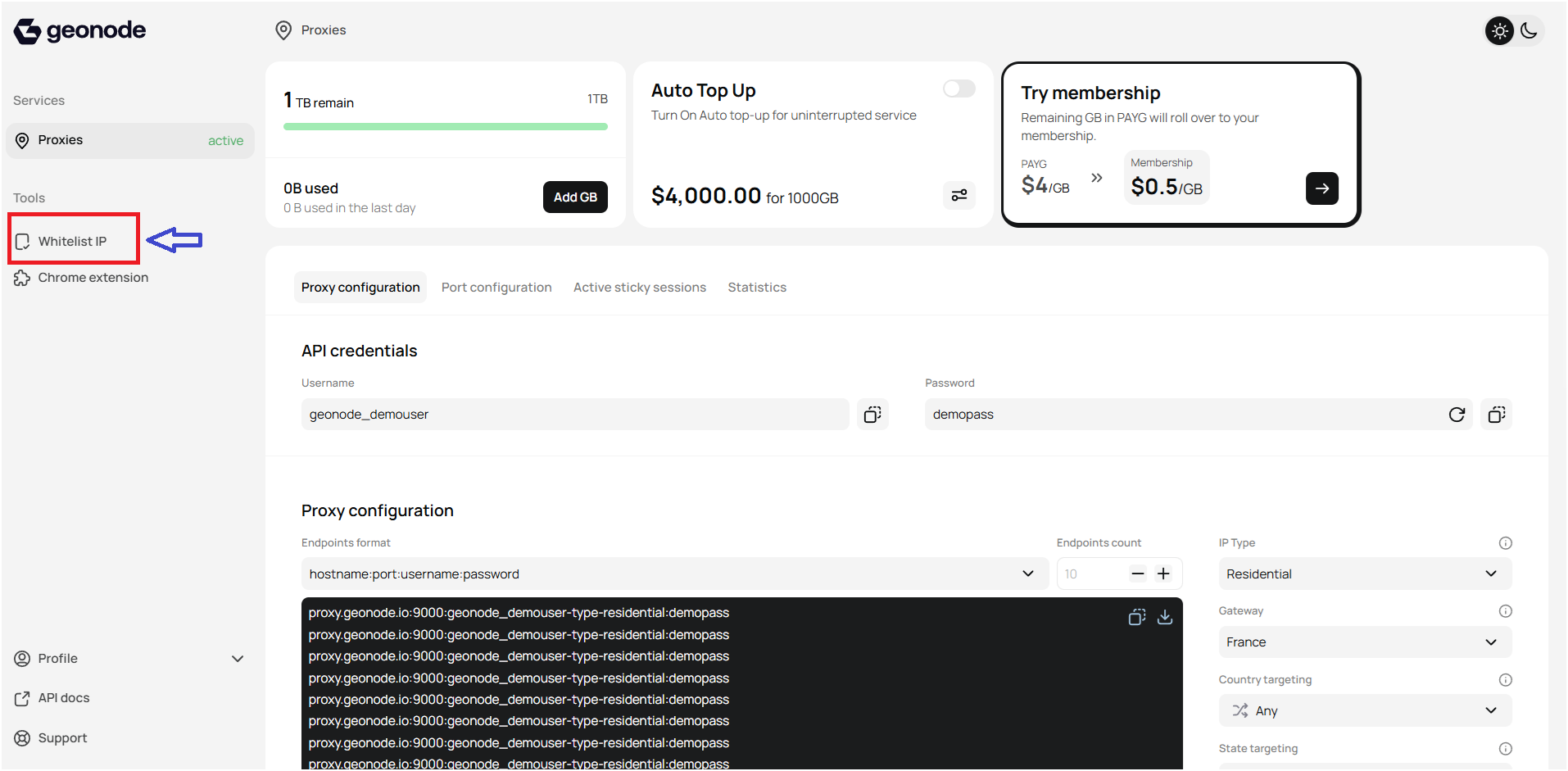
1. **Navigate to IP Whitelist Settings:**
* Look for a section labeled "Whitelisted IPs" in the settings menu.
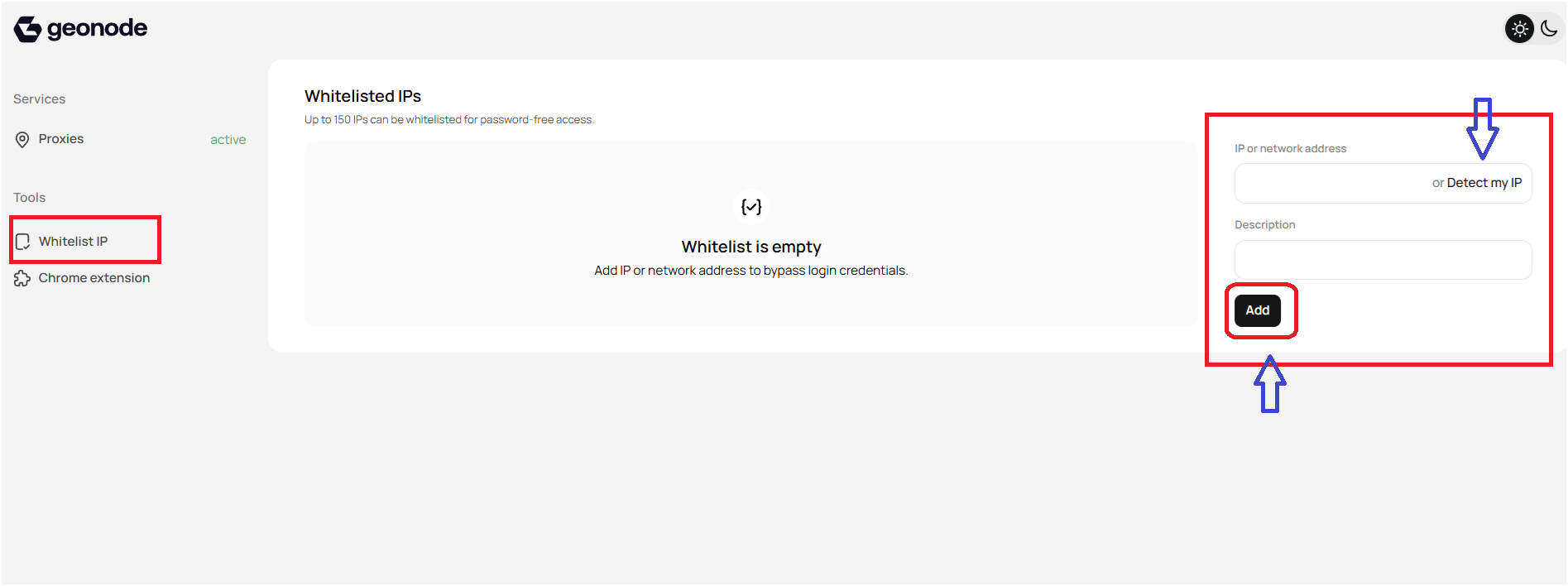
 2. **Add an IP Address:**
* Enter the IP address you want to whitelist in the provided field or For quick setup, use the
- "Detect My IP" button to automatically add your current IP..
* Optionally, add a description (e.g., *Home*, *Office*, *Server*) for easy identification.
* Click the "Add" button to save the IP.
2. **Add an IP Address:**
* Enter the IP address you want to whitelist in the provided field or For quick setup, use the
- "Detect My IP" button to automatically add your current IP..
* Optionally, add a description (e.g., *Home*, *Office*, *Server*) for easy identification.
* Click the "Add" button to save the IP.
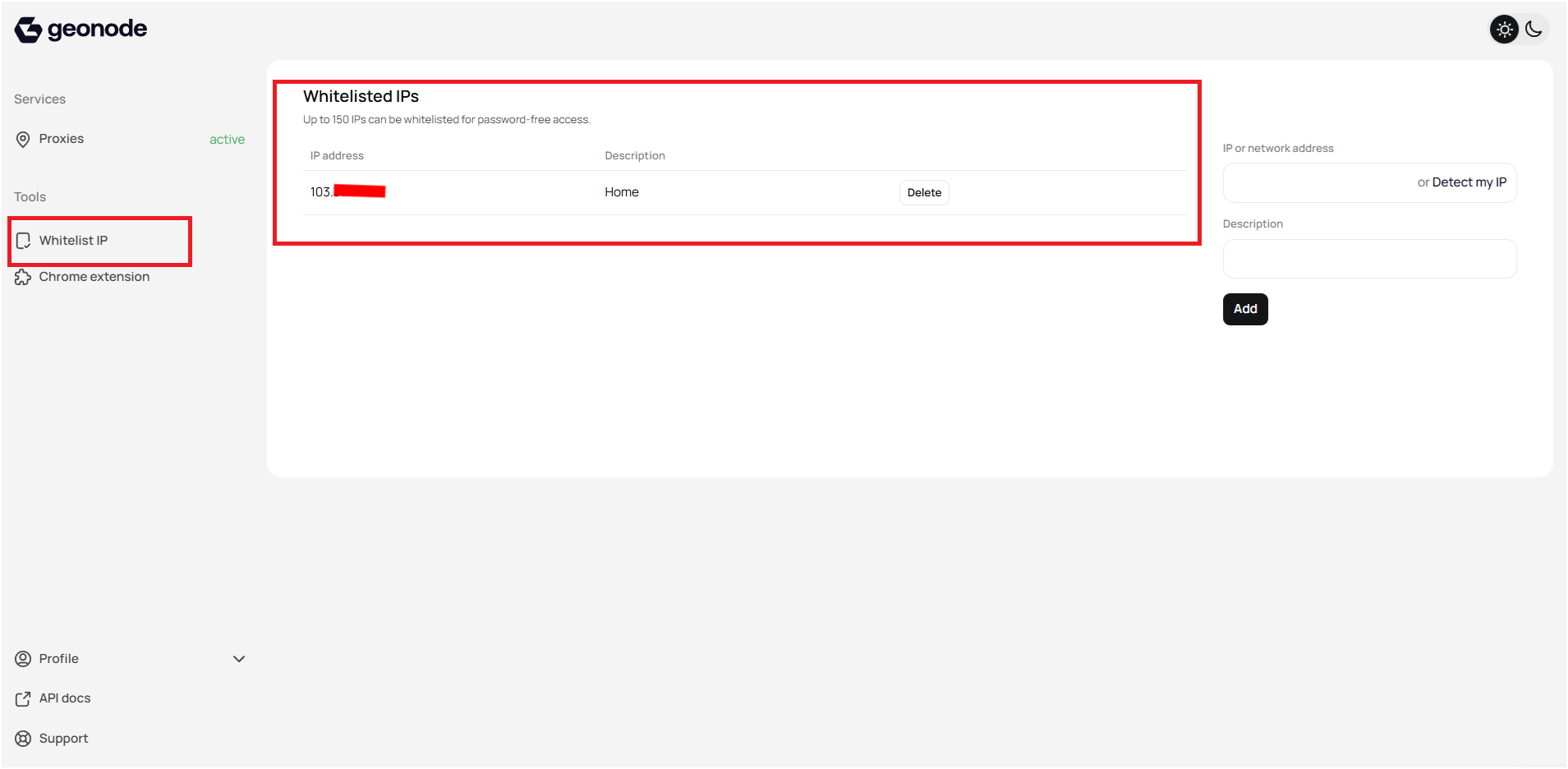
 3. **Verify the IP:**
* Ensure the IP appears in the whitelist table with the correct details
3. **Verify the IP:**
* Ensure the IP appears in the whitelist table with the correct details
 ***
### **Remove an IP**
1. **Locate the IP:** Find the IP address in the whitelist section.
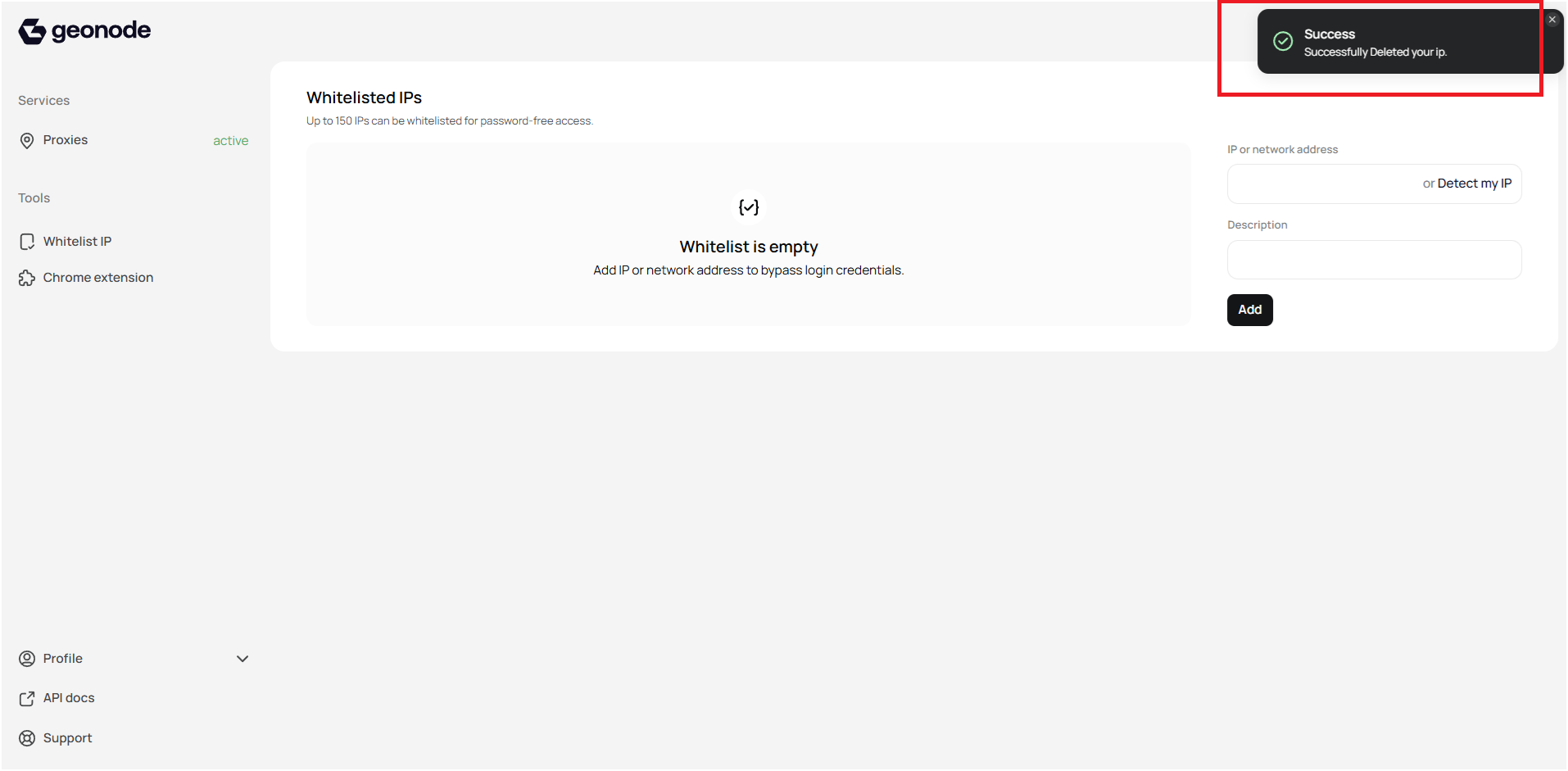
2. **Click "Delete":** Press the "Delete" button next to the IP you want to remove.
3. **Verify Deletion:** Check notification
***
### **Remove an IP**
1. **Locate the IP:** Find the IP address in the whitelist section.
2. **Click "Delete":** Press the "Delete" button next to the IP you want to remove.
3. **Verify Deletion:** Check notification
 ***
## **Using API**
Geonode provides APIs to manage your whitelisted IPs programmatically. You can perform the following actions:
* [Retrieve Whitelisted IPs](/api-reference/whitelisting-ip/get) `get`
* [Add Whitelisted IPs](/api-reference/whitelisting-ip/post) `post`
* [Update Whitelisted IP Description](/api-reference/whitelisting-ip/put) `put`
* [Remove Whitelisted IPs](/api-reference/whitelisting-ip/delete) `delete`
For detailed API request formats, parameters, and code examples in multiple languages, refer to the [Geonode API Documentation](https://geonode.mintlify.app/api-reference/whitelisting-ip/whitelisting-ips).
***
## **Verify Proxy Connection**
To ensure the proxy is working, check your IP address using an online tool or follow this guide:
* [Verify Proxy Connection](/proxy-setup/verify-proxy-connection)
***
If you encounter any issues, refer to the [**troubleshooting section**](/knowledge-base/troubleshooting/proxy-not-working) or [**Geonode support**](/additional-resources/support).
***
## **FAQs**
Basic Authentication is required to ensure the security of the system. You must encode your username and password in Base64 to authenticate the request.
Yes, you can use the Geonode API to automate the process of adding, updating, and removing whitelisted IPs.
If you try to whitelist more than 150 IPs, the system will reject the request. Make sure to stay within the limit.
You can easily remove or update the IP address using the Dashboard or API. If using the Dashboard, simply delete the IP and add the correct one. The API allows you to manage the list programmatically
* Whitelisting your IP ensures that your device or network can access the proxy without needing to enter credentials every time. When your IP is whitelisted, you can access services seamlessly, as the system recognizes your IP as trusted.
* Without whitelisting, you will be prompted to enter your authentication credentials each time you attempt to connect, which can be inconvenient and time-consuming.
***
## **Using API**
Geonode provides APIs to manage your whitelisted IPs programmatically. You can perform the following actions:
* [Retrieve Whitelisted IPs](/api-reference/whitelisting-ip/get) `get`
* [Add Whitelisted IPs](/api-reference/whitelisting-ip/post) `post`
* [Update Whitelisted IP Description](/api-reference/whitelisting-ip/put) `put`
* [Remove Whitelisted IPs](/api-reference/whitelisting-ip/delete) `delete`
For detailed API request formats, parameters, and code examples in multiple languages, refer to the [Geonode API Documentation](https://geonode.mintlify.app/api-reference/whitelisting-ip/whitelisting-ips).
***
## **Verify Proxy Connection**
To ensure the proxy is working, check your IP address using an online tool or follow this guide:
* [Verify Proxy Connection](/proxy-setup/verify-proxy-connection)
***
If you encounter any issues, refer to the [**troubleshooting section**](/knowledge-base/troubleshooting/proxy-not-working) or [**Geonode support**](/additional-resources/support).
***
## **FAQs**
Basic Authentication is required to ensure the security of the system. You must encode your username and password in Base64 to authenticate the request.
Yes, you can use the Geonode API to automate the process of adding, updating, and removing whitelisted IPs.
If you try to whitelist more than 150 IPs, the system will reject the request. Make sure to stay within the limit.
You can easily remove or update the IP address using the Dashboard or API. If using the Dashboard, simply delete the IP and add the correct one. The API allows you to manage the list programmatically
* Whitelisting your IP ensures that your device or network can access the proxy without needing to enter credentials every time. When your IP is whitelisted, you can access services seamlessly, as the system recognizes your IP as trusted.
* Without whitelisting, you will be prompted to enter your authentication credentials each time you attempt to connect, which can be inconvenient and time-consuming.