> ## Documentation Index
> Fetch the complete documentation index at: https://geonode.mintlify.site/llms.txt
> Use this file to discover all available pages before exploring further.
# Proxy Configuration
> How to use the Endpoint Generator to configure Proxy
***
This guide walks you through each step of the proxy configuration process.
## **What is Endpoint Generator**
The Endpoint Generator helps you generate a list of proxies based on your needs. Select IP type, host, location, protocol, and session type parameters, and export the list of endpoints in TXT formats.
## **Step 1: Accessing the User Dashboard**
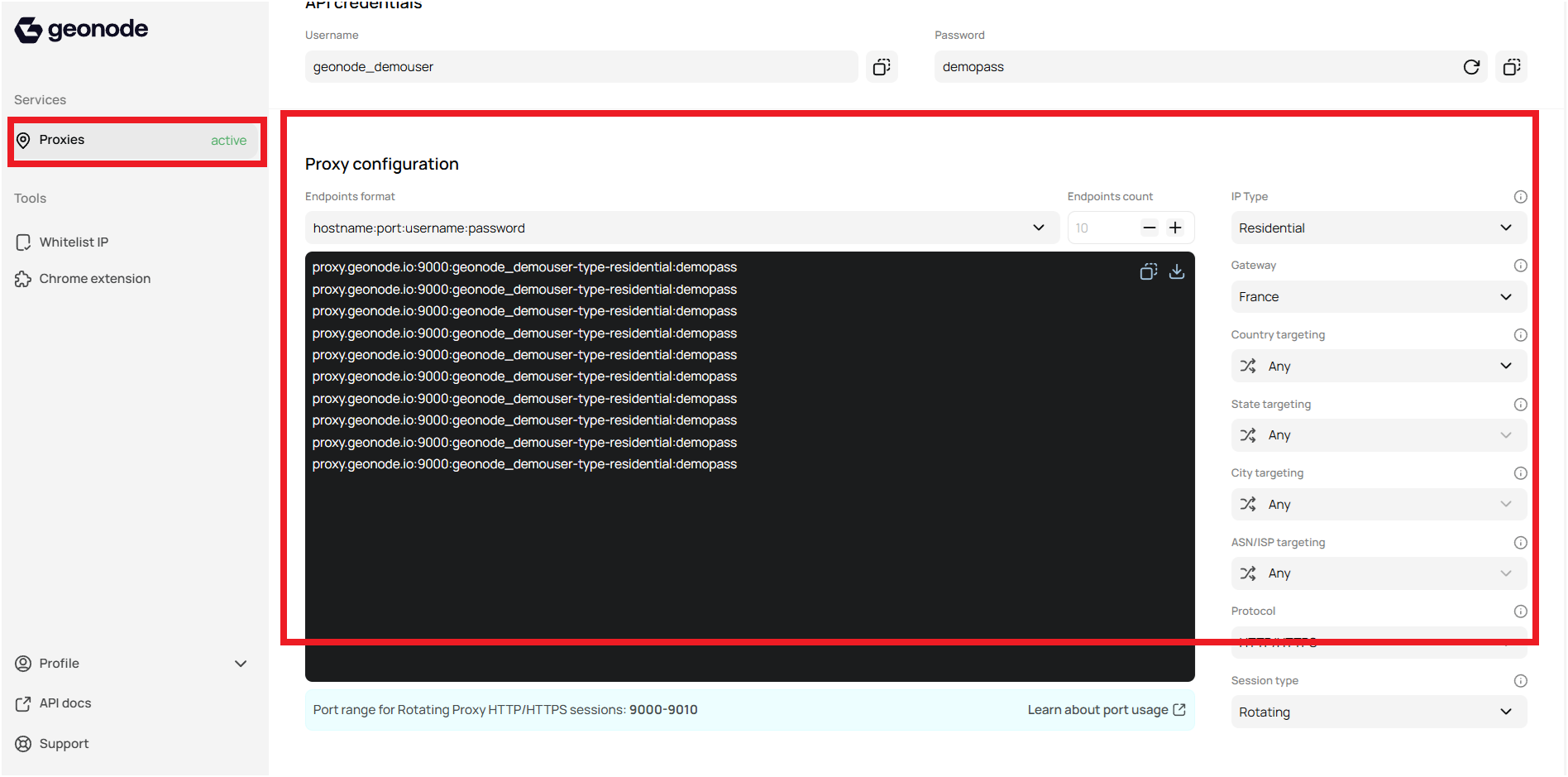
* Navigate to the dashboard.
* Scroll down to **Proxy configuration**
 ## **Step 2: Choosing an Endpoint Format**
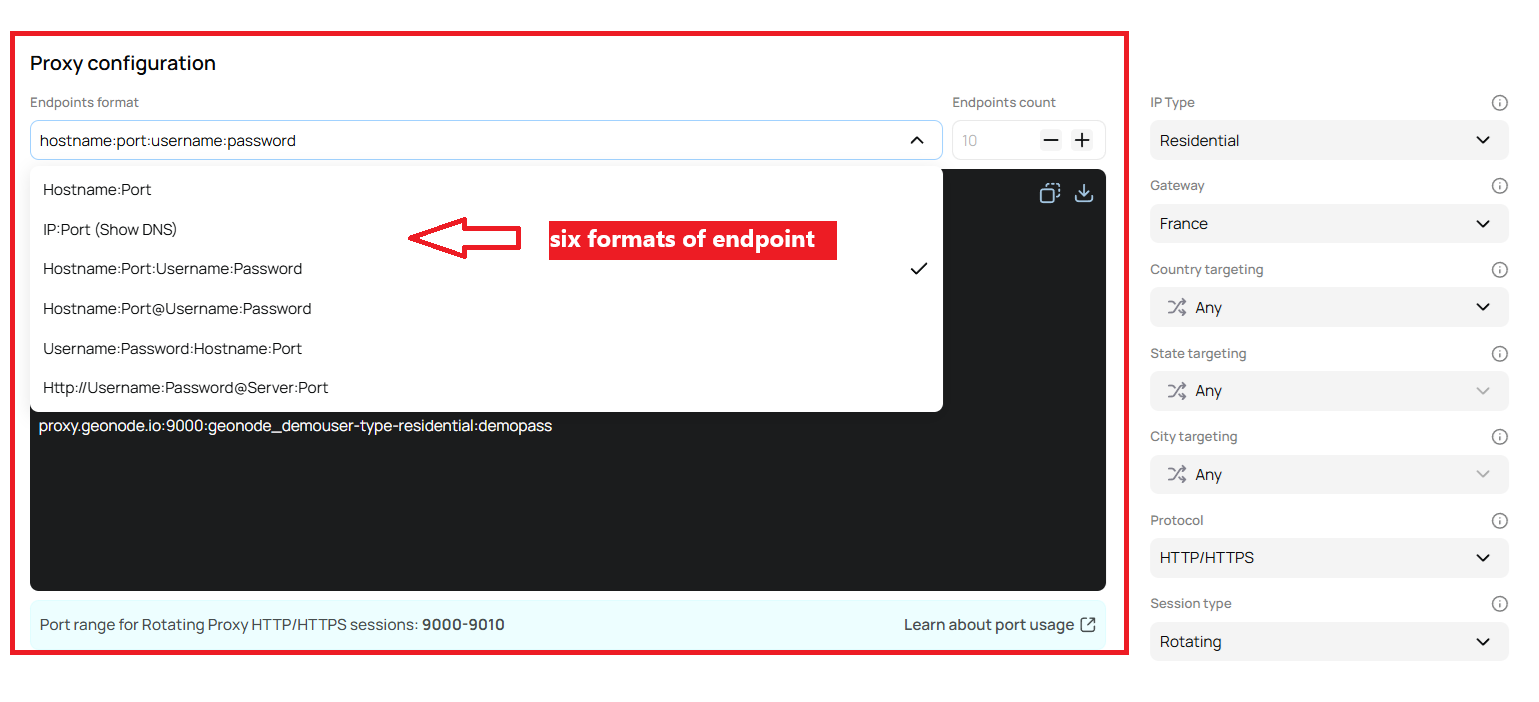
There are **six formats** available for generating proxy endpoints based on your authentication and connection preferences:
## **Step 2: Choosing an Endpoint Format**
There are **six formats** available for generating proxy endpoints based on your authentication and connection preferences:
 ➡️ Follow this guide to understand Proxy Endpoint formats in-depth [Understanding Different Proxy Endpoint Formats and Their Uses](/knowledge-base/proxy-service-guide/endpoint-formats)
## **Step 3: Choosing an Endpoint Count**
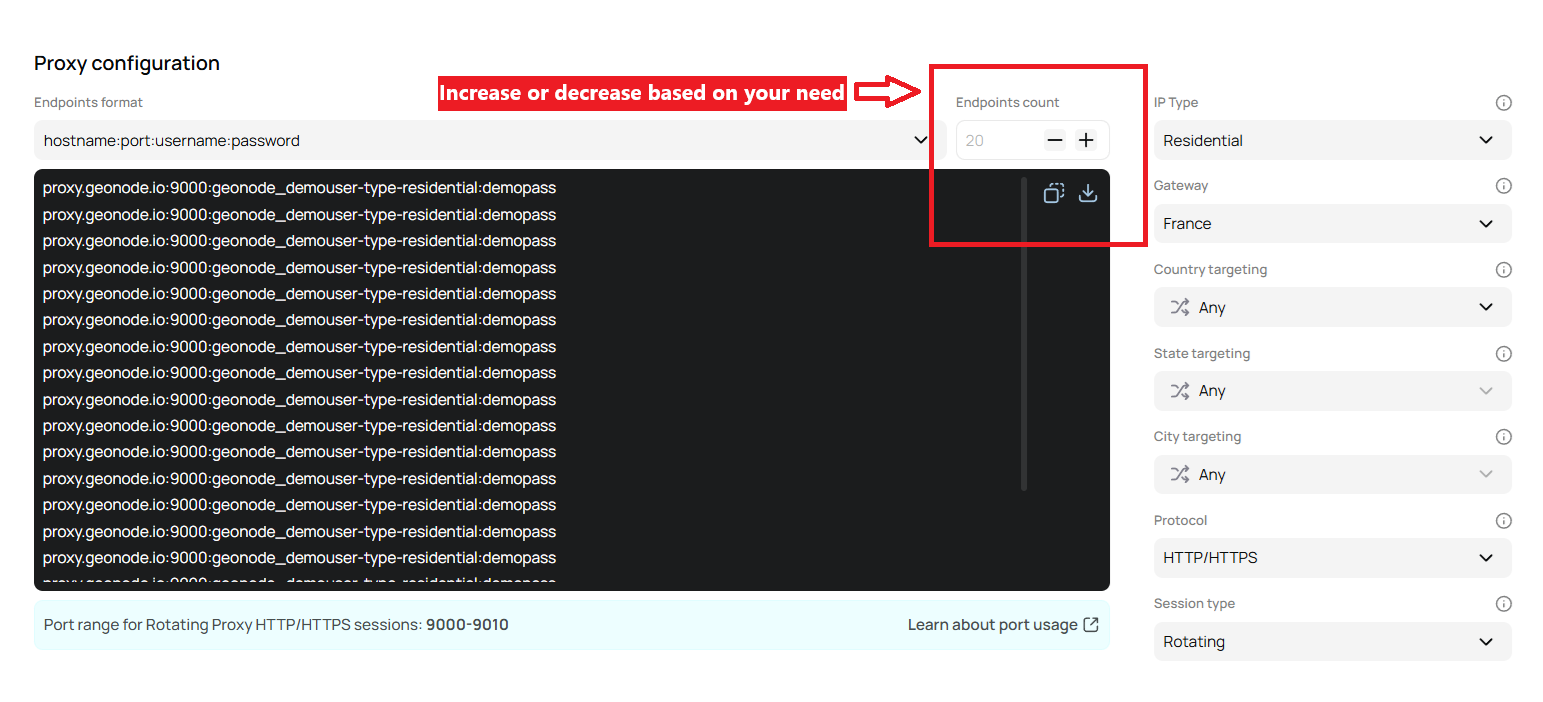
You can specify the number of endpoints you want
➡️ Follow this guide to understand Proxy Endpoint formats in-depth [Understanding Different Proxy Endpoint Formats and Their Uses](/knowledge-base/proxy-service-guide/endpoint-formats)
## **Step 3: Choosing an Endpoint Count**
You can specify the number of endpoints you want
 ## **Step 4: Configure Proxy Parameters:**
There are **seven ways** available for configuring proxy endpoints based on your needs.
### **1. Selecting IP Type**
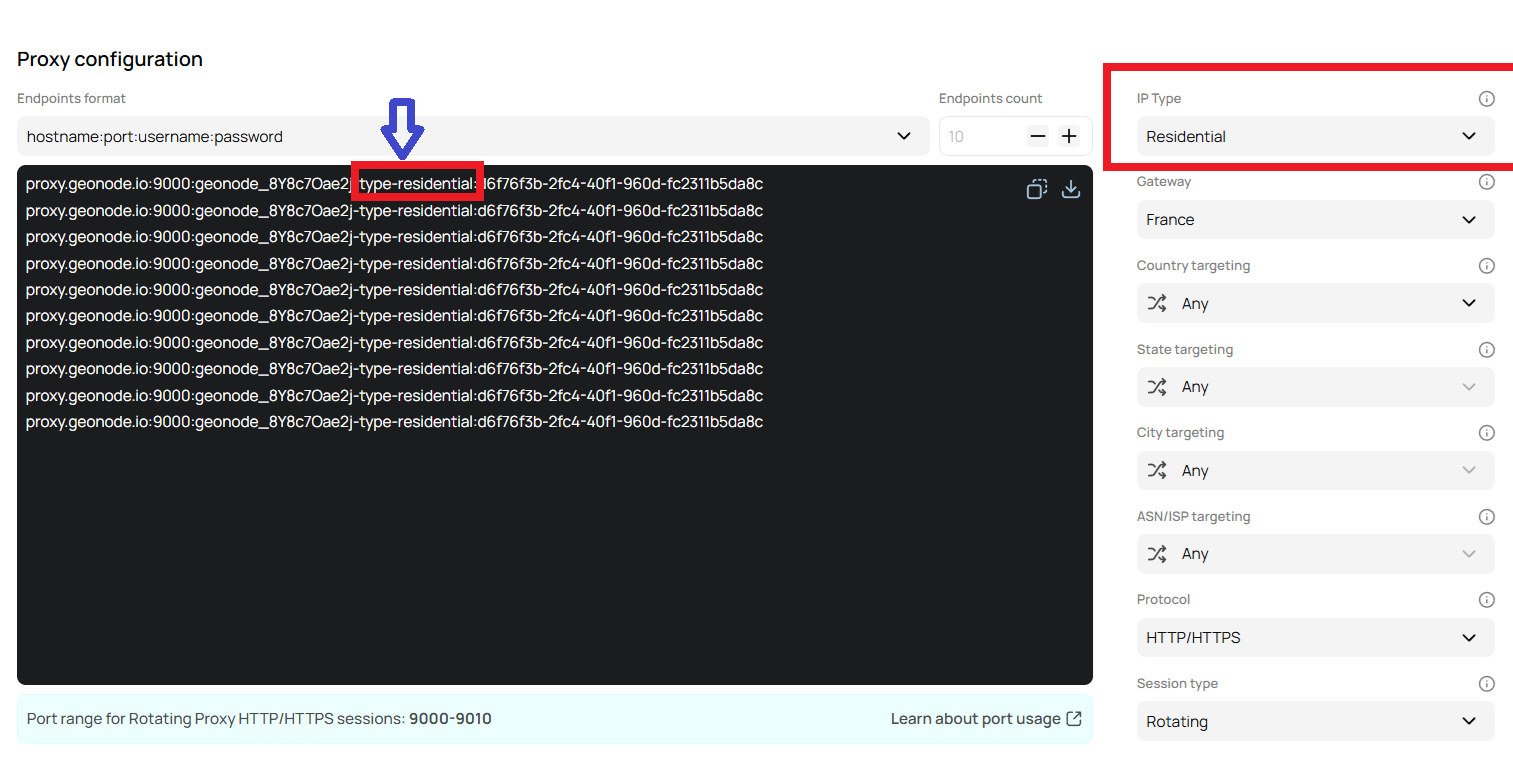
You can choose the type of IP based on your needs. There are **three types** available:
* Residential IPs
* Datacenter
* Mixed
## **Step 4: Configure Proxy Parameters:**
There are **seven ways** available for configuring proxy endpoints based on your needs.
### **1. Selecting IP Type**
You can choose the type of IP based on your needs. There are **three types** available:
* Residential IPs
* Datacenter
* Mixed
 ➡️ Follow this guide to understand IP types in-depth [Learn about Residential, Datacenter, and Mixed IPs and their best use cases](/knowledge-base/proxy-service-guide/ip-type)
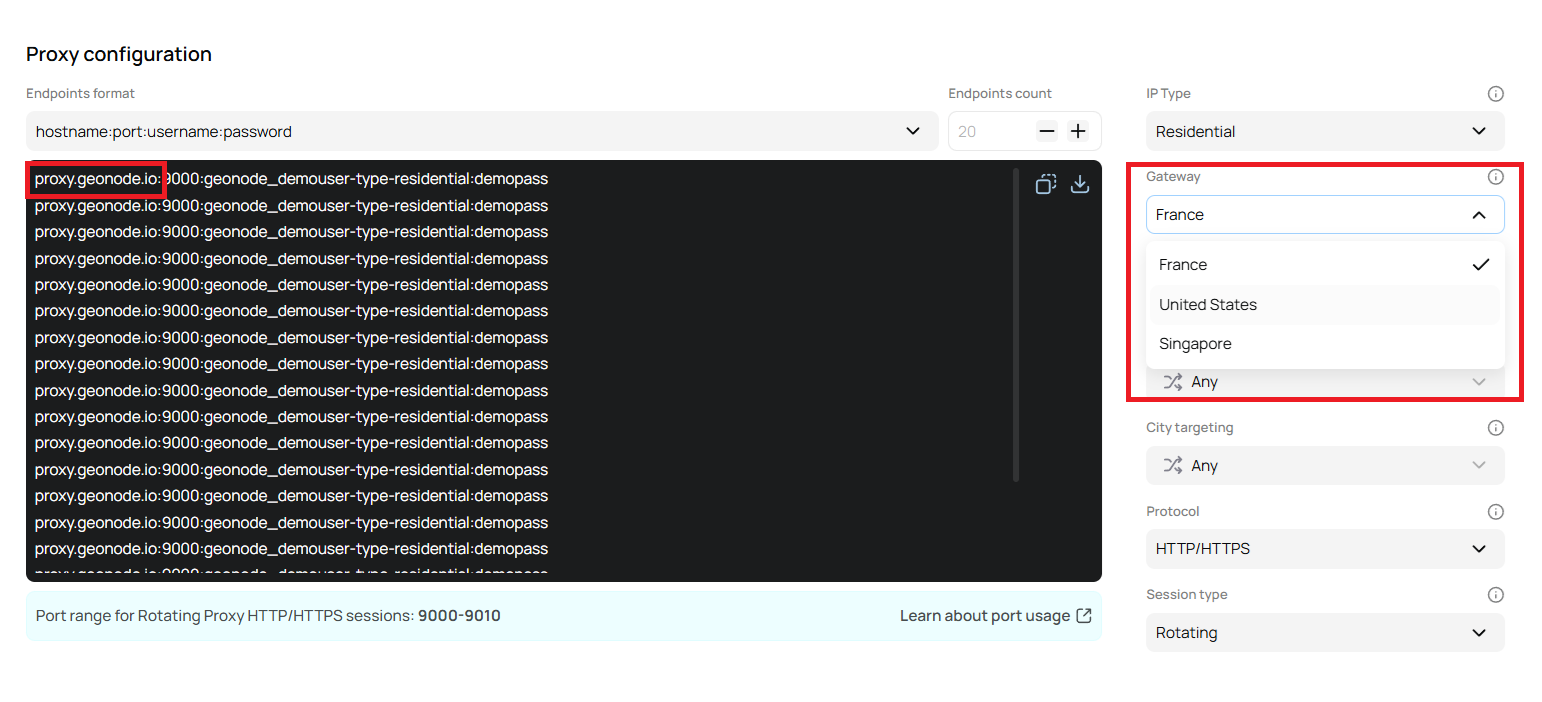
### **2. Selecting Gateway**
You can choose the host based on your needs. There are **three different hosts** available:
| Location | Host Address |
| ------------- | ---------------------------------- |
| France | proxy.geonode.io |
| United States | us.premium-residential.geonode.com |
| Singapore | sg.premium-residential.geonode.com |
When you select a host, the corresponding host address will automatically update.
➡️ Follow this guide to understand IP types in-depth [Learn about Residential, Datacenter, and Mixed IPs and their best use cases](/knowledge-base/proxy-service-guide/ip-type)
### **2. Selecting Gateway**
You can choose the host based on your needs. There are **three different hosts** available:
| Location | Host Address |
| ------------- | ---------------------------------- |
| France | proxy.geonode.io |
| United States | us.premium-residential.geonode.com |
| Singapore | sg.premium-residential.geonode.com |
When you select a host, the corresponding host address will automatically update.
 ➡️ Follow this guide to understand Gateway in-depth [Learn about Geonode's proxy gateways and how they work](/knowledge-base/proxy-service-guide/gateway)
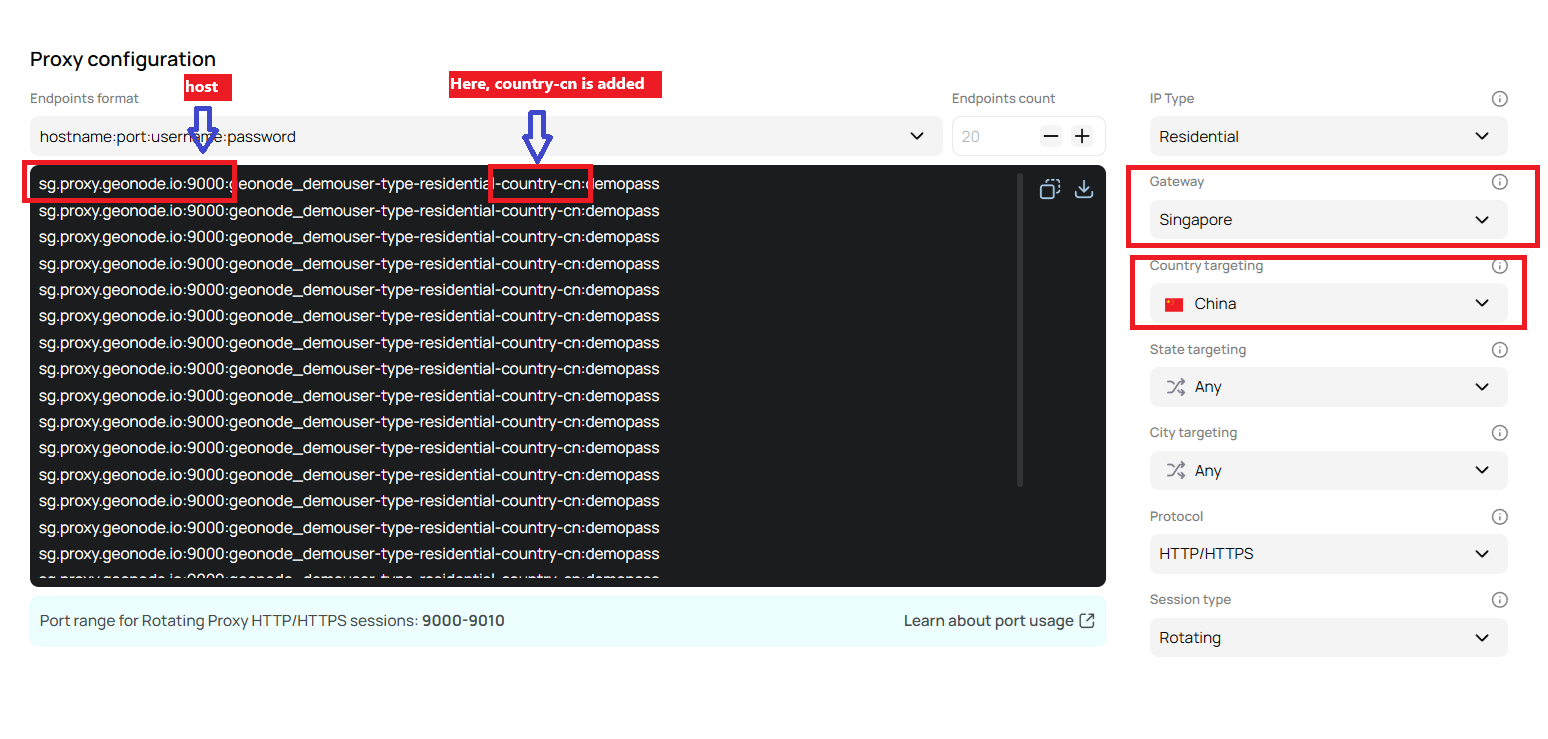
### **3. Selecting Geo-Target(Country, State, and City)**
You can choose a target country, state, or city. By default, **"Any"** is selected, meaning proxies from any country will be used.
**Example:**
* **Host**: Singapore
* **Target Country**: China
In this case, the host is located closer to China in Asia, ensuring better connectivity and performance when targeting Chinese services.
➡️ Follow this guide to understand Gateway in-depth [Learn about Geonode's proxy gateways and how they work](/knowledge-base/proxy-service-guide/gateway)
### **3. Selecting Geo-Target(Country, State, and City)**
You can choose a target country, state, or city. By default, **"Any"** is selected, meaning proxies from any country will be used.
**Example:**
* **Host**: Singapore
* **Target Country**: China
In this case, the host is located closer to China in Asia, ensuring better connectivity and performance when targeting Chinese services.
 ➡️ Follow this guide to understand Geo-Target in-depth [What is Geo-Targeting](/knowledge-base/proxy-service-guide/geo-targeting)
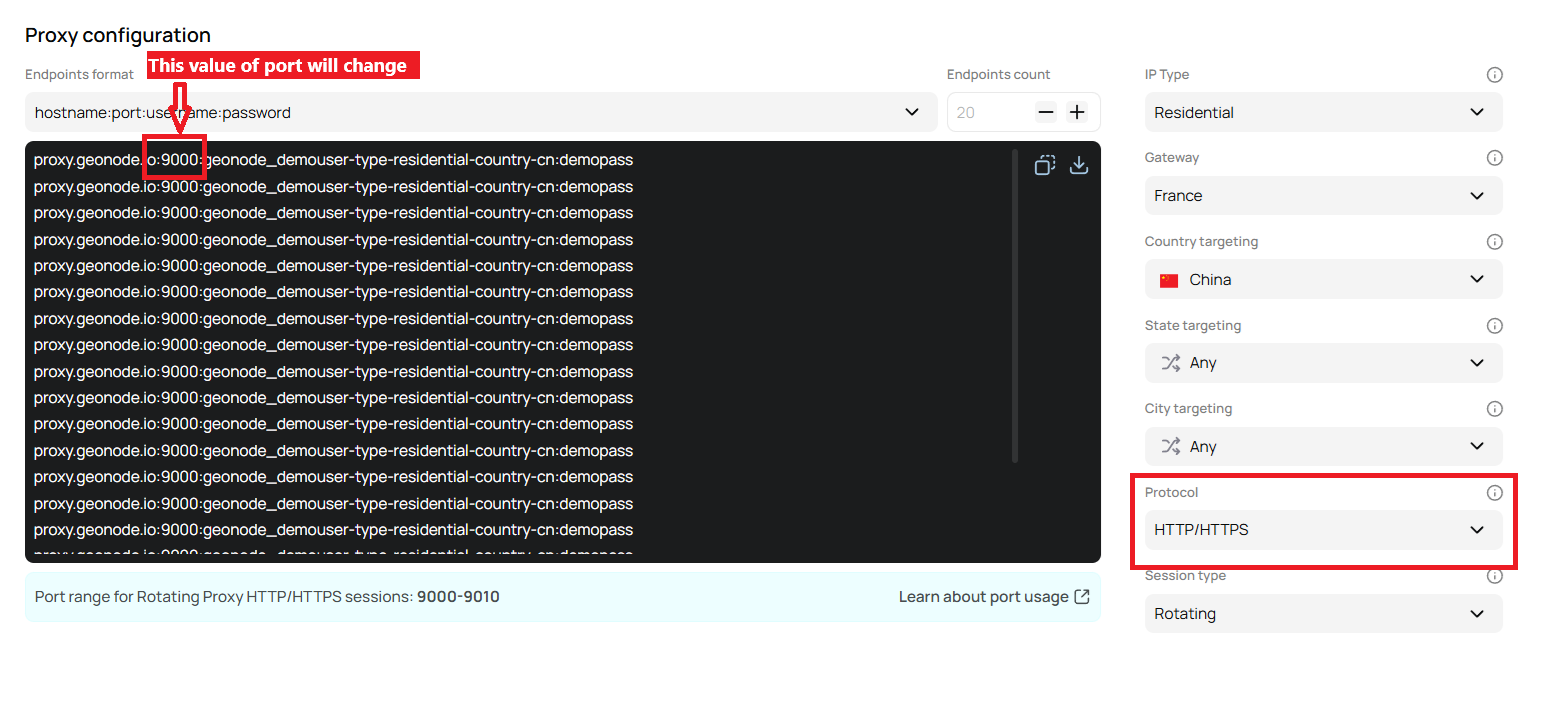
### **4. Selecting Protocol**
Selecting the protocol is crucial as it determines how your proxy connections will be handled. There are two protocols available:
1. HTTP/HTTPS
2. SOCKS5
➡️ Follow this guide to understand Geo-Target in-depth [What is Geo-Targeting](/knowledge-base/proxy-service-guide/geo-targeting)
### **4. Selecting Protocol**
Selecting the protocol is crucial as it determines how your proxy connections will be handled. There are two protocols available:
1. HTTP/HTTPS
2. SOCKS5
 ➡️ Follow this guide to understand protocol type, refer to [Understanding Protocol Type for Proxy Configuration](/knowledge-base/proxy-service-guide/protocol-type)
When you select a protocol, the **port numbers in the generated endpoints will update automatically** to match the chosen protocol.
➡️ Follow this guide to understand portocol usage, refer to [Learn how ports work in Geonode’s proxy configuration.](/knowledge-base/proxy-service-guide/proxy-usage)
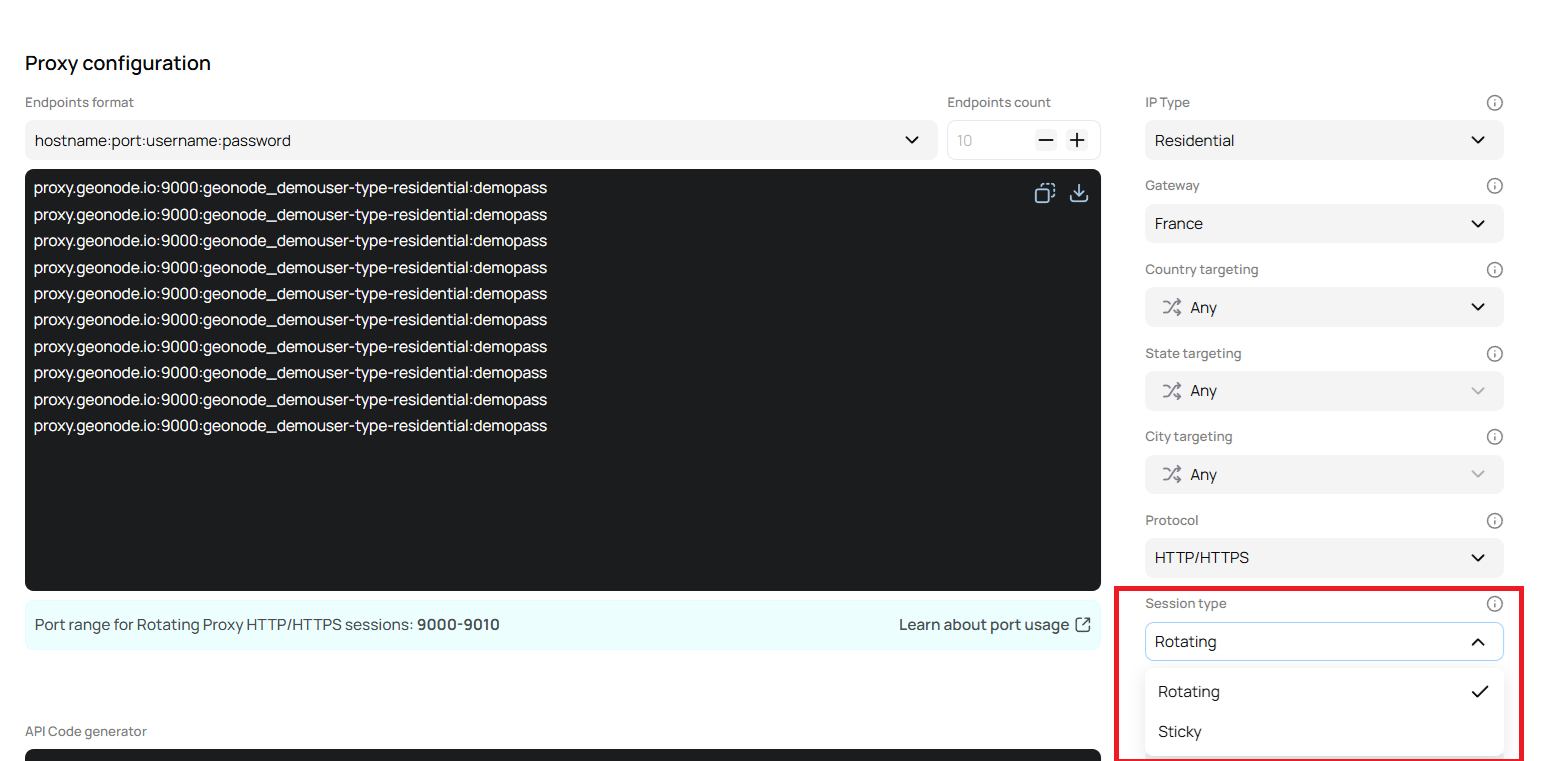
### **5. Selecting Session Type**
There are two session types available, depending on how you want your proxy to handle connections:
1. Rotating Session
2. Sticky Session
When you select the session type, then below the terminal it will show the port range and the endpoint will also update
➡️ Follow this guide to understand protocol type, refer to [Understanding Protocol Type for Proxy Configuration](/knowledge-base/proxy-service-guide/protocol-type)
When you select a protocol, the **port numbers in the generated endpoints will update automatically** to match the chosen protocol.
➡️ Follow this guide to understand portocol usage, refer to [Learn how ports work in Geonode’s proxy configuration.](/knowledge-base/proxy-service-guide/proxy-usage)
### **5. Selecting Session Type**
There are two session types available, depending on how you want your proxy to handle connections:
1. Rotating Session
2. Sticky Session
When you select the session type, then below the terminal it will show the port range and the endpoint will also update
 ➡️ Follow this guide to understand session type in-depth [What is a Session? A Guide to Rotating and Sticky Session](/knowledge-base/proxy-service-guide/session-type)
### **6. Rotating Interval (Only for Sticky Session)**
For Sticky Sessions, you can set a rotating interval to control how often the IP address changes. You can adjust this in minutes or hours.
➡️ Follow this guide to understand session type in-depth [What is a Session? A Guide to Rotating and Sticky Session](/knowledge-base/proxy-service-guide/session-type)
### **6. Rotating Interval (Only for Sticky Session)**
For Sticky Sessions, you can set a rotating interval to control how often the IP address changes. You can adjust this in minutes or hours.
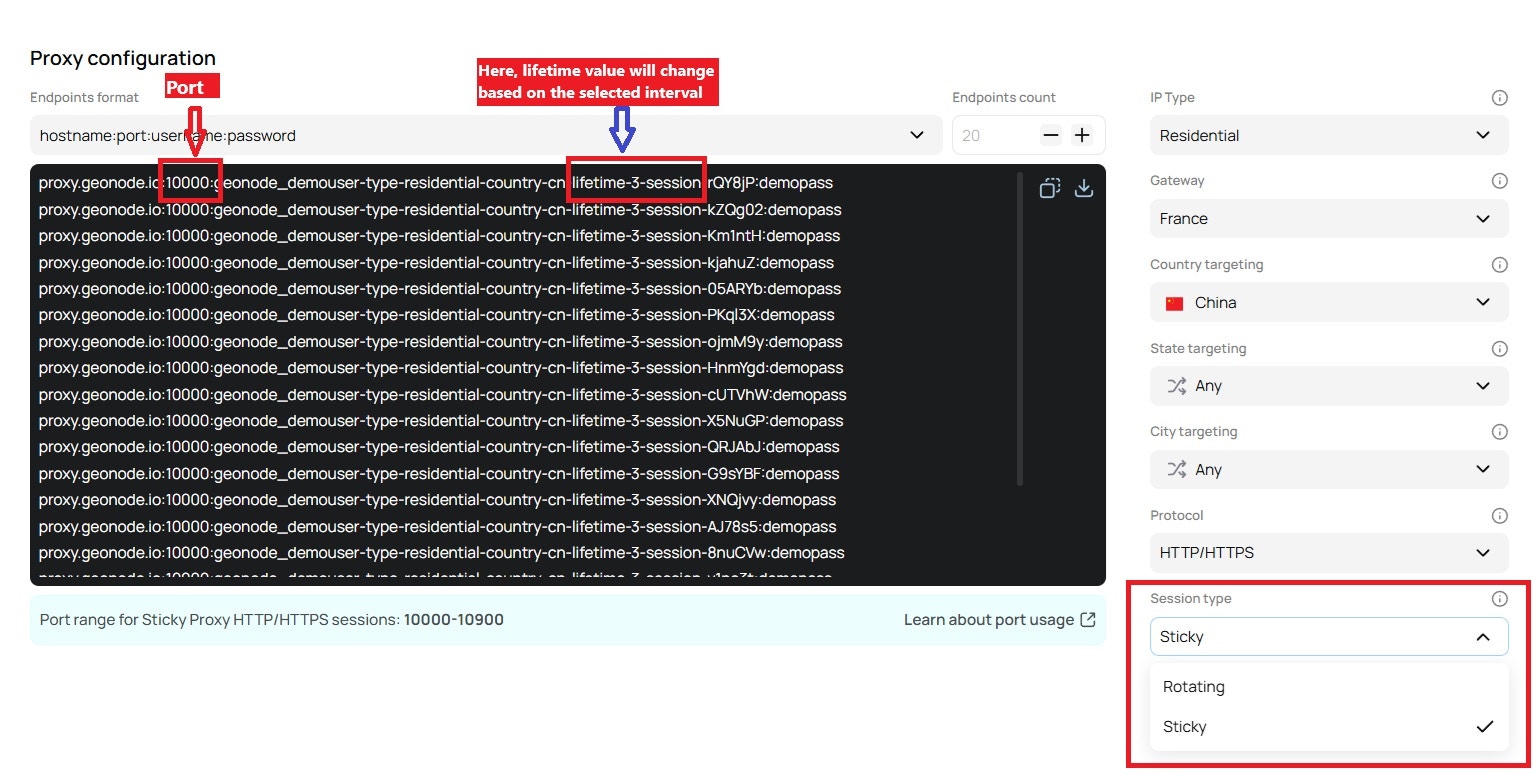 Adjusting the rotating interval helps maintain session consistency while periodically rotating IPs for better security and performance.
## **Step 5: Select the Output format.**
After successfully configuring the endpoints, you can:
* Copy the endpoints directly for immediate use.
* Download a `.txt` file containing the generated endpoints for future reference.
Adjusting the rotating interval helps maintain session consistency while periodically rotating IPs for better security and performance.
## **Step 5: Select the Output format.**
After successfully configuring the endpoints, you can:
* Copy the endpoints directly for immediate use.
* Download a `.txt` file containing the generated endpoints for future reference.
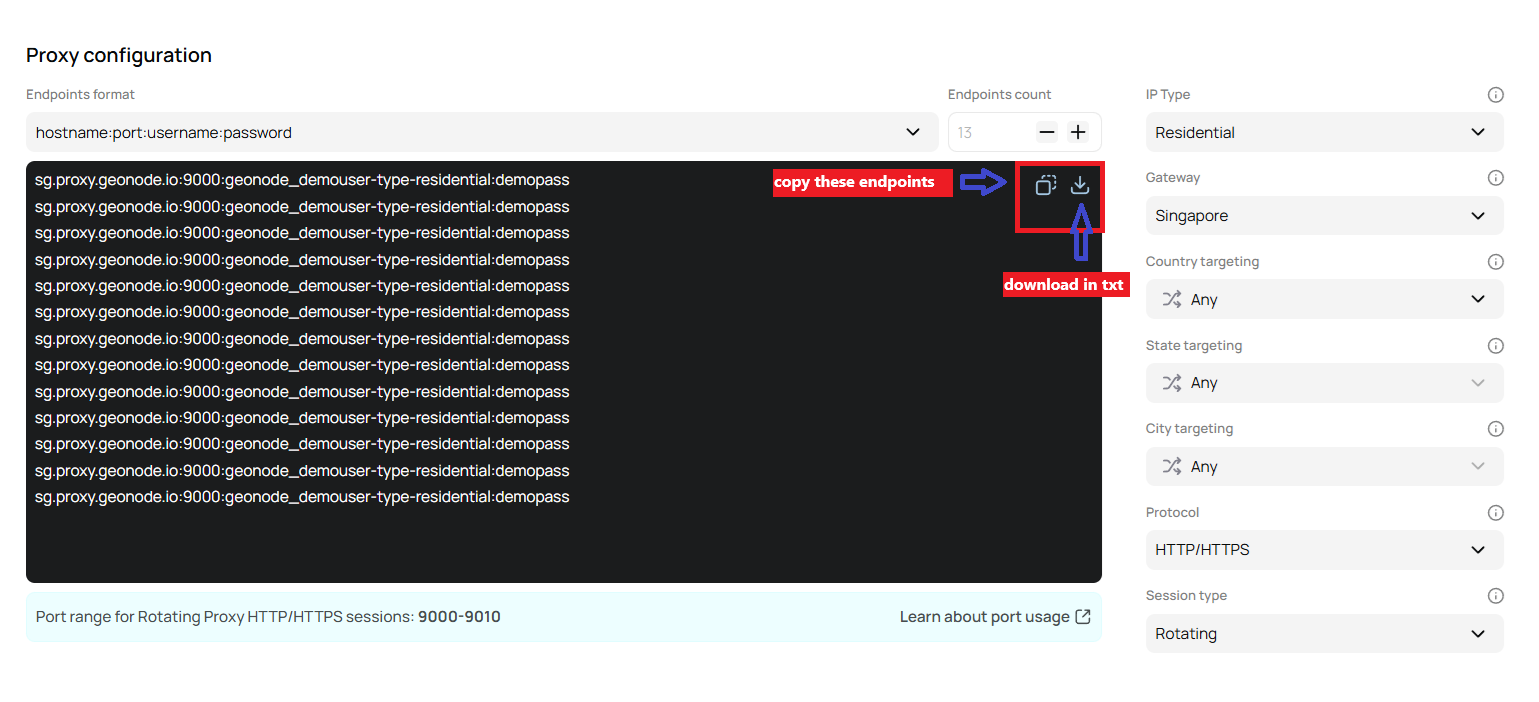 Congrats - you have successfully created a ready-to-use list of endpoints and your proxy setup is now ready to be integrated into your applications.