> ## Documentation Index
> Fetch the complete documentation index at: https://geonode.mintlify.site/llms.txt
> Use this file to discover all available pages before exploring further.
# Port Configuration
> How to Use Port Configuration
***
The **Port Configuration** section in the Geonode dashboard allows you to set up and manage proxy ports with specific targeting options.
This guide will help you understand how to configure ports effectively.
## **Step 1: Navigate to Port Configuration**
1. Log in to your Geonode dashboard.
2. Click on the **"Port Configuration"** tab at the top navigation bar.
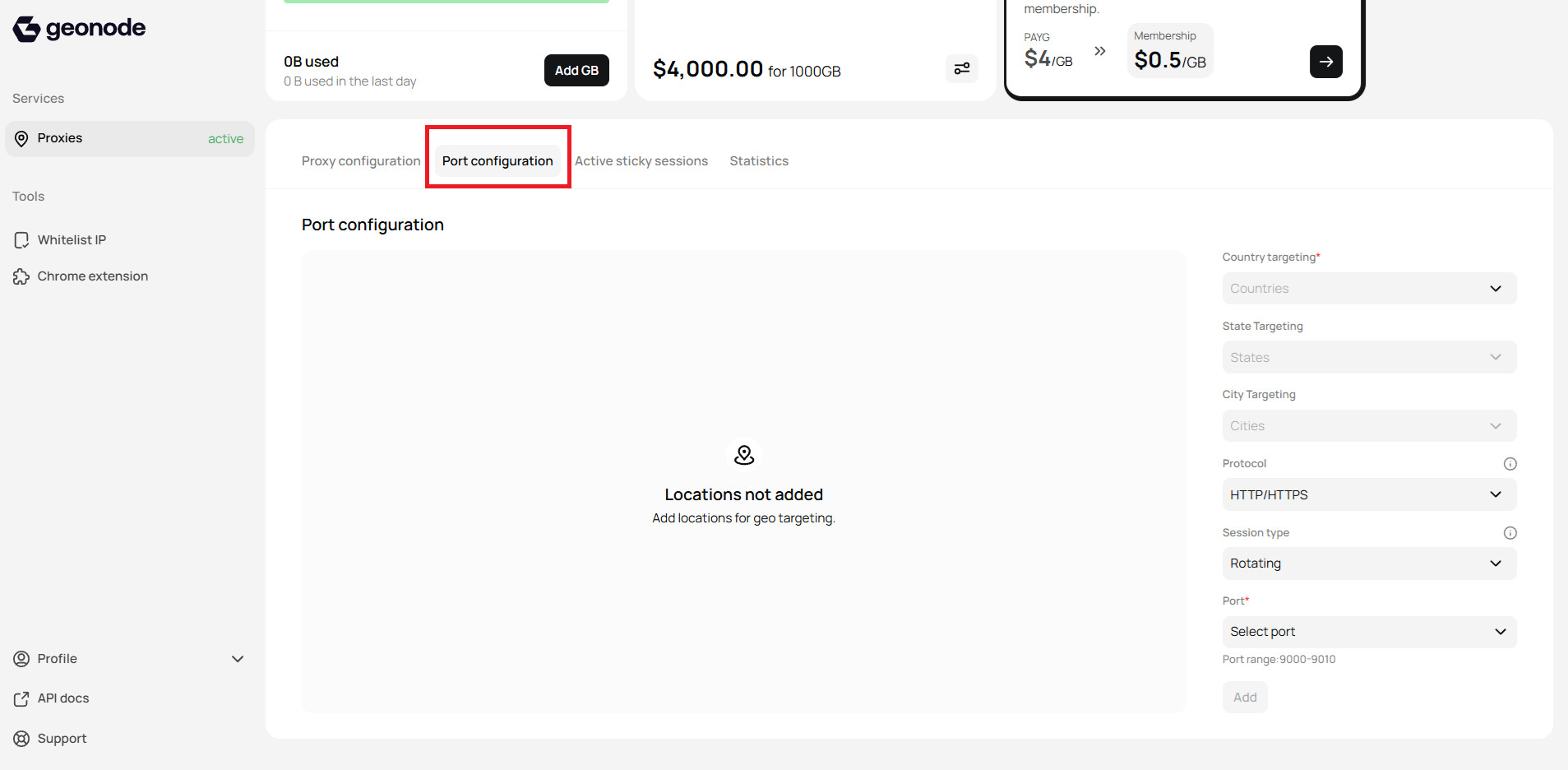 You will see a screen similar to the provided screenshot with options on the right side and a display area for added locations.
## **Step 2: Configure Your Port Settings**
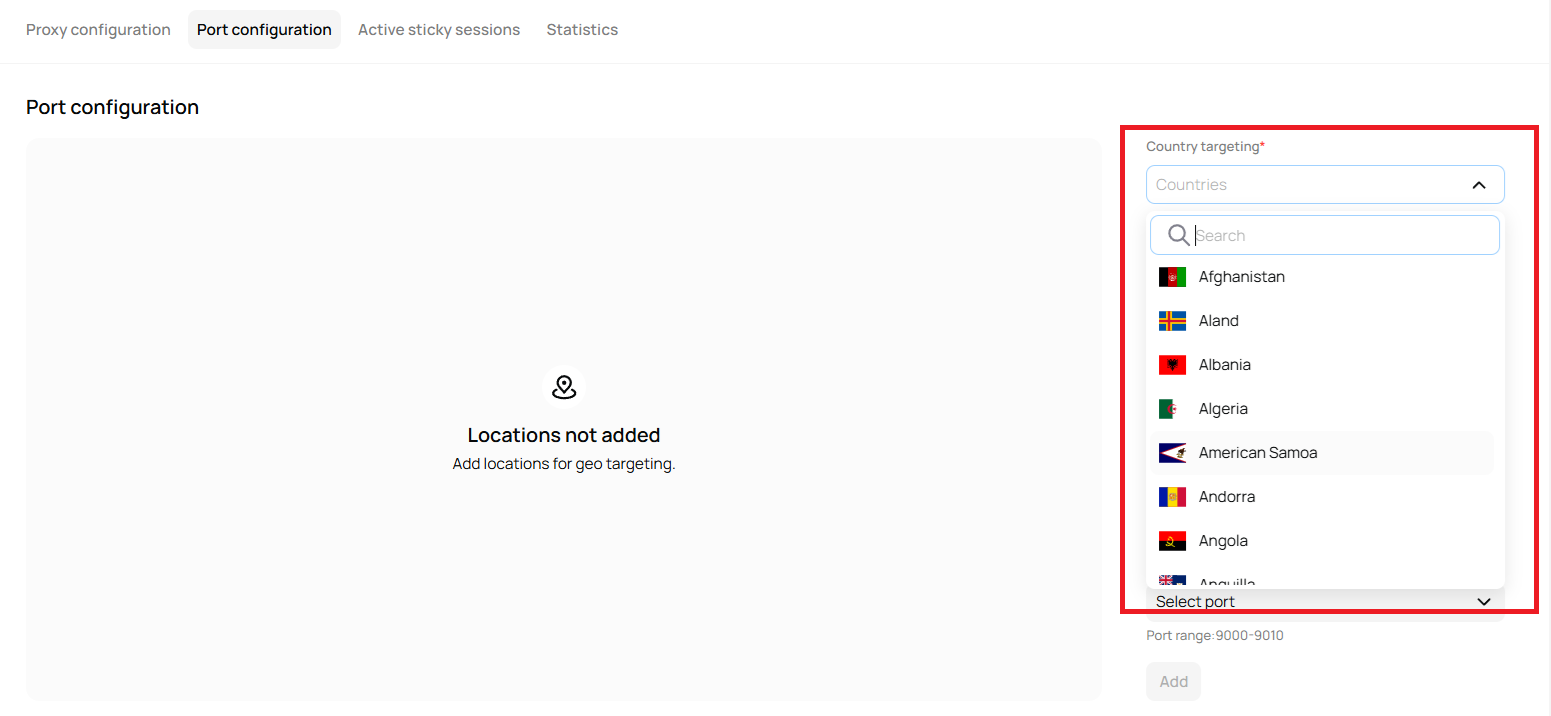
### **1. Country Targeting (Required)**
* Click on the **"Countries"** dropdown.
* Select the country you want to target.
* This is a mandatory field for geo-targeting.
You will see a screen similar to the provided screenshot with options on the right side and a display area for added locations.
## **Step 2: Configure Your Port Settings**
### **1. Country Targeting (Required)**
* Click on the **"Countries"** dropdown.
* Select the country you want to target.
* This is a mandatory field for geo-targeting.
 ### **2. State Targeting (Optional)**
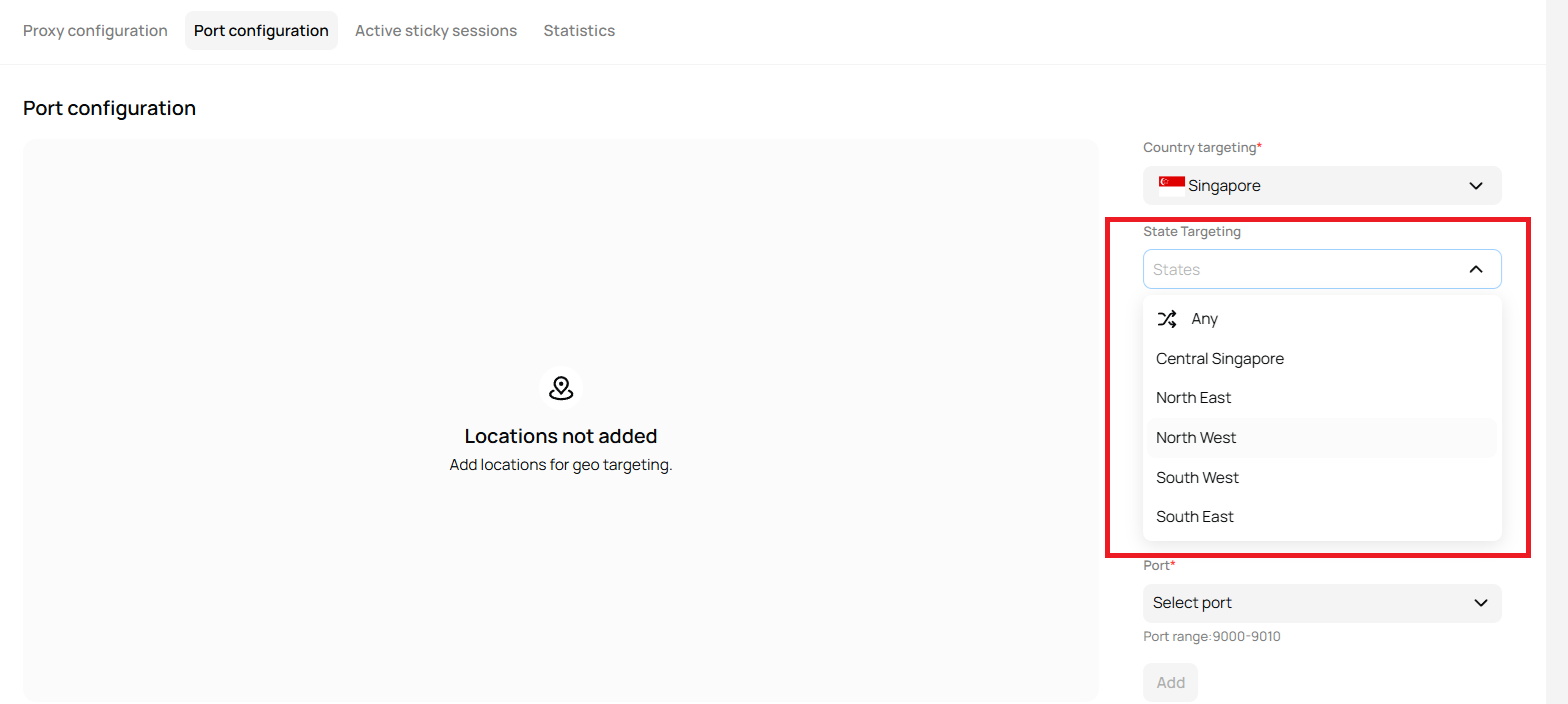
* After selecting a country, the **"States"** dropdown becomes active.
* Select a specific state if needed.
### **2. State Targeting (Optional)**
* After selecting a country, the **"States"** dropdown becomes active.
* Select a specific state if needed.
 ### **3. City Targeting (Optional)**
* After choosing a state, the **"Cities"** dropdown will be enabled.
* Select a city for more precise targeting.
### **4. Protocol Selection**
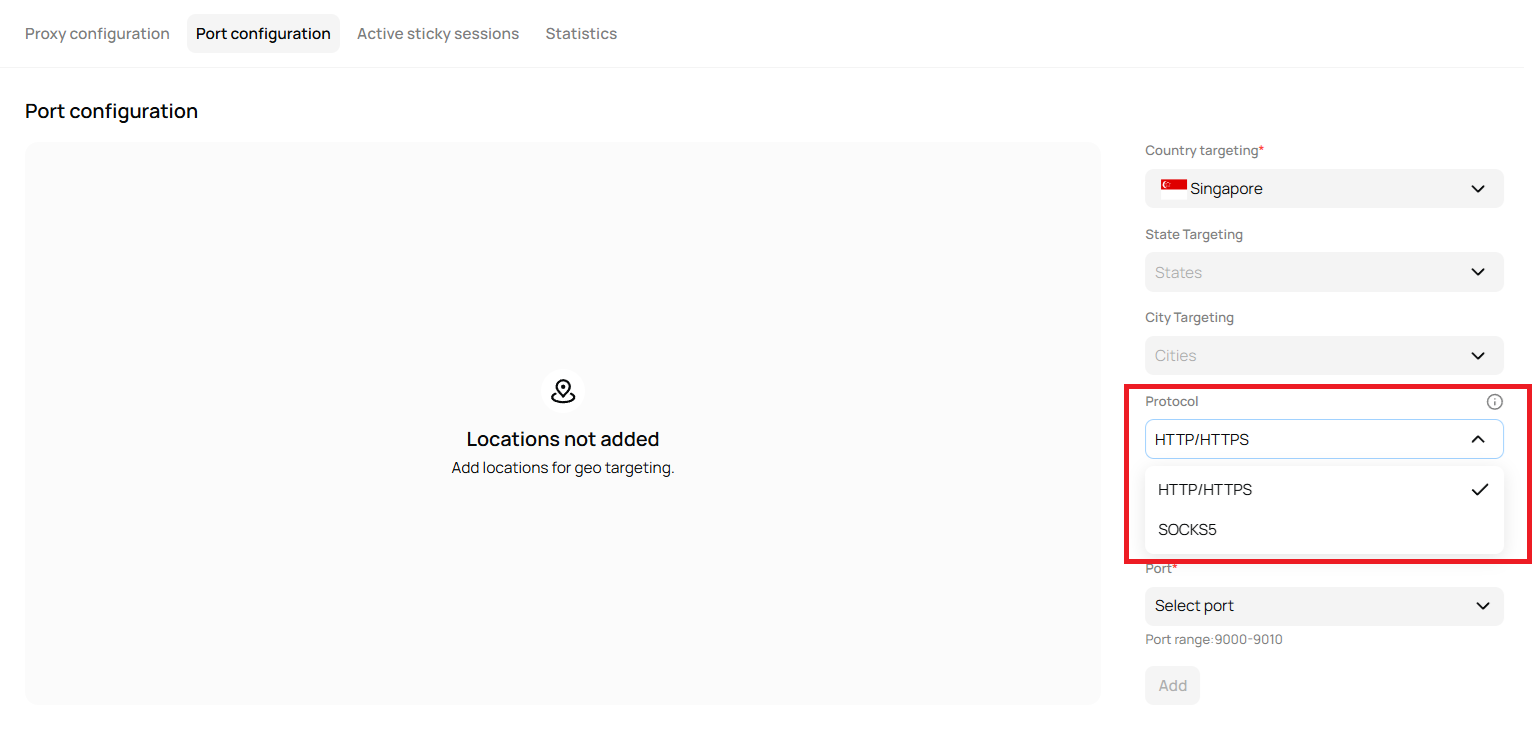
* Click on the **"HTTP/HTTPS"** dropdown.
* Choose between available protocols:
* **HTTP/HTTPS** for standard web traffic.
* **SOCKS5** if supported, for more secure or versatile connections.
### **3. City Targeting (Optional)**
* After choosing a state, the **"Cities"** dropdown will be enabled.
* Select a city for more precise targeting.
### **4. Protocol Selection**
* Click on the **"HTTP/HTTPS"** dropdown.
* Choose between available protocols:
* **HTTP/HTTPS** for standard web traffic.
* **SOCKS5** if supported, for more secure or versatile connections.
 For a deeper understanding of protocol type, refer to [Understanding Protocol Type for Proxy Configuration](https://docs.google.com/document/d/1rjZHN-Fj6UYewLB5HbWaF22AX3VyvraabF5PEWqdSMs/edit?usp=sharing).
### **5. Session Type**
* Select the session type from the dropdown:
* **Rotating**: Changes IPs periodically, useful for scraping and automation.
* **Sticky**: Maintains the same IP for a session, ideal for login-related tasks.
For a deeper understanding of protocol type, refer to [Understanding Protocol Type for Proxy Configuration](https://docs.google.com/document/d/1rjZHN-Fj6UYewLB5HbWaF22AX3VyvraabF5PEWqdSMs/edit?usp=sharing).
### **5. Session Type**
* Select the session type from the dropdown:
* **Rotating**: Changes IPs periodically, useful for scraping and automation.
* **Sticky**: Maintains the same IP for a session, ideal for login-related tasks.
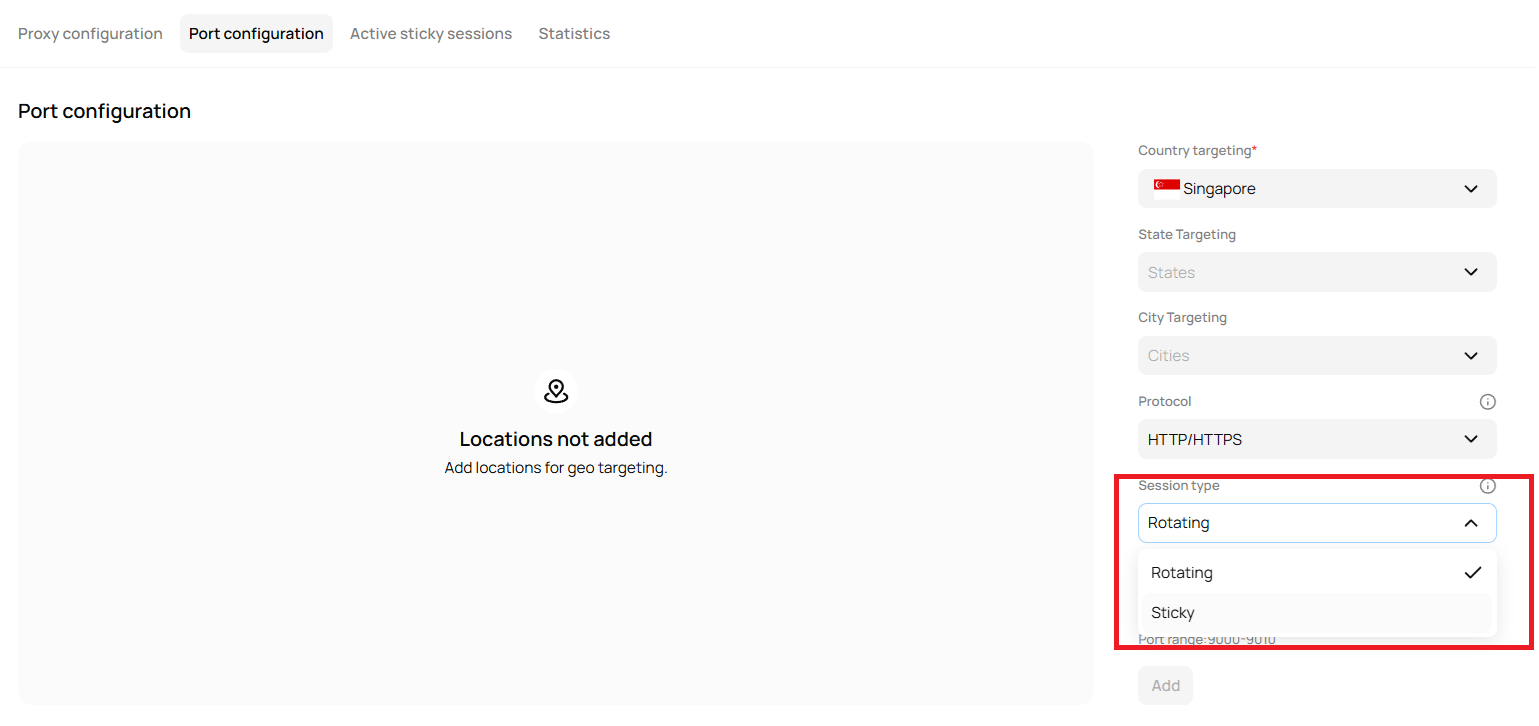 For a deeper understanding of session type, refer to [Understanding Session Type for Proxy Configuration](https://docs.google.com/document/d/1udGgGDQrqsNW78Rdulv_OtW2Ox2lu6xhdSxjlIPgjOY/edit?usp=sharing).
### **6. Port Selection (Required)**
* Click on **"Select Port"** to choose a port from the range based on your configure Protocol and session type.
* This is a required field to complete the configuration.
For a deeper understanding of session type, refer to [Understanding Session Type for Proxy Configuration](https://docs.google.com/document/d/1udGgGDQrqsNW78Rdulv_OtW2Ox2lu6xhdSxjlIPgjOY/edit?usp=sharing).
### **6. Port Selection (Required)**
* Click on **"Select Port"** to choose a port from the range based on your configure Protocol and session type.
* This is a required field to complete the configuration.
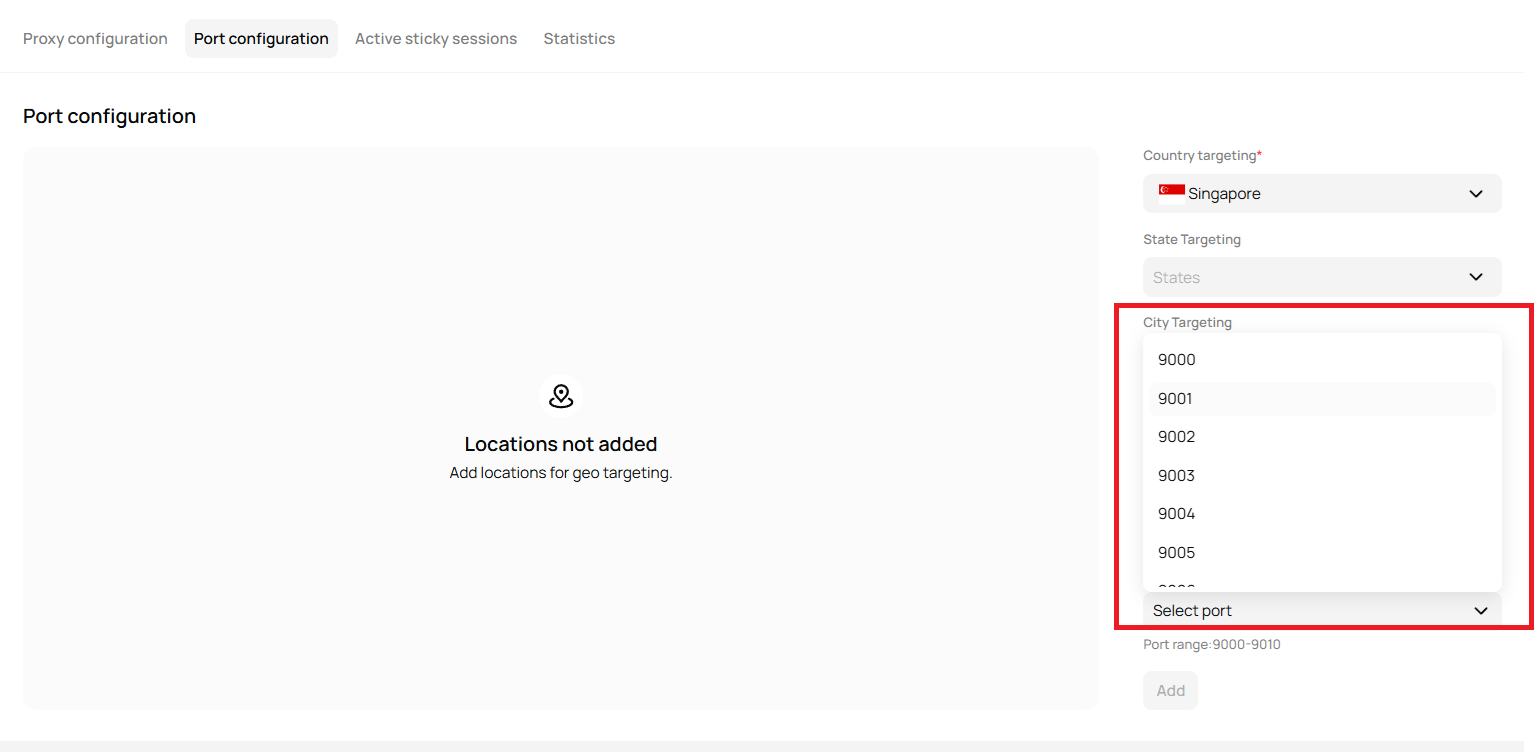 For a deeper understanding of port usage, refer to [Understanding Port Usage for Proxy Configuration](https://docs.geonode.com/docs/understanding-port-usage-for-proxy-configuration).
## **Step 3: Add the Configuration**
* After filling in the required fields, the **"Add"** button will become active.
* Click **"Add"** to save the port configuration.
For a deeper understanding of port usage, refer to [Understanding Port Usage for Proxy Configuration](https://docs.geonode.com/docs/understanding-port-usage-for-proxy-configuration).
## **Step 3: Add the Configuration**
* After filling in the required fields, the **"Add"** button will become active.
* Click **"Add"** to save the port configuration.
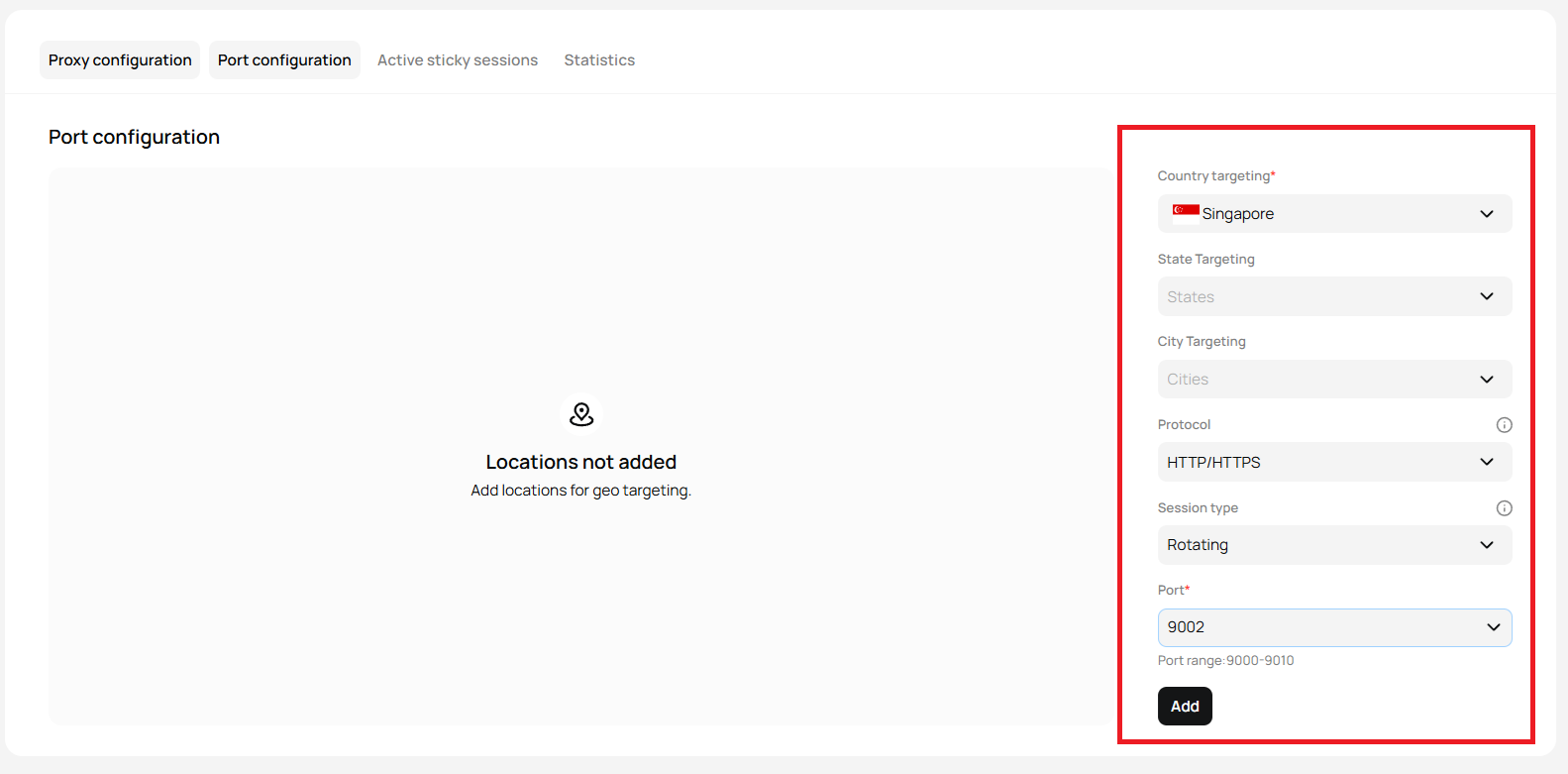 ## **Step 4: Review Added Locations**
* Once added, the configured ports and locations will be displayed in the central section.
* You can view, edit, or delete configurations as needed.
## **Step 4: Review Added Locations**
* Once added, the configured ports and locations will be displayed in the central section.
* You can view, edit, or delete configurations as needed.
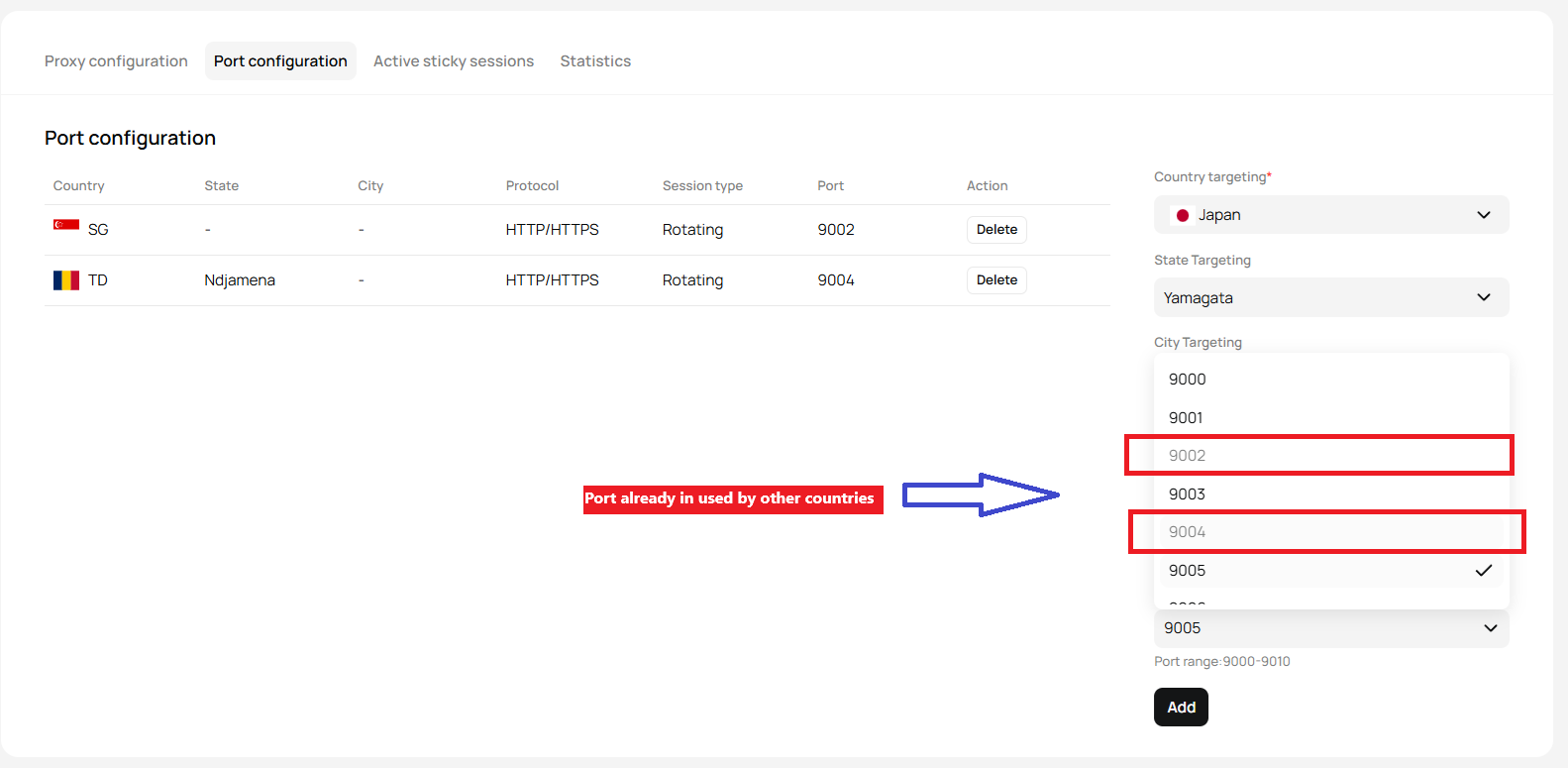
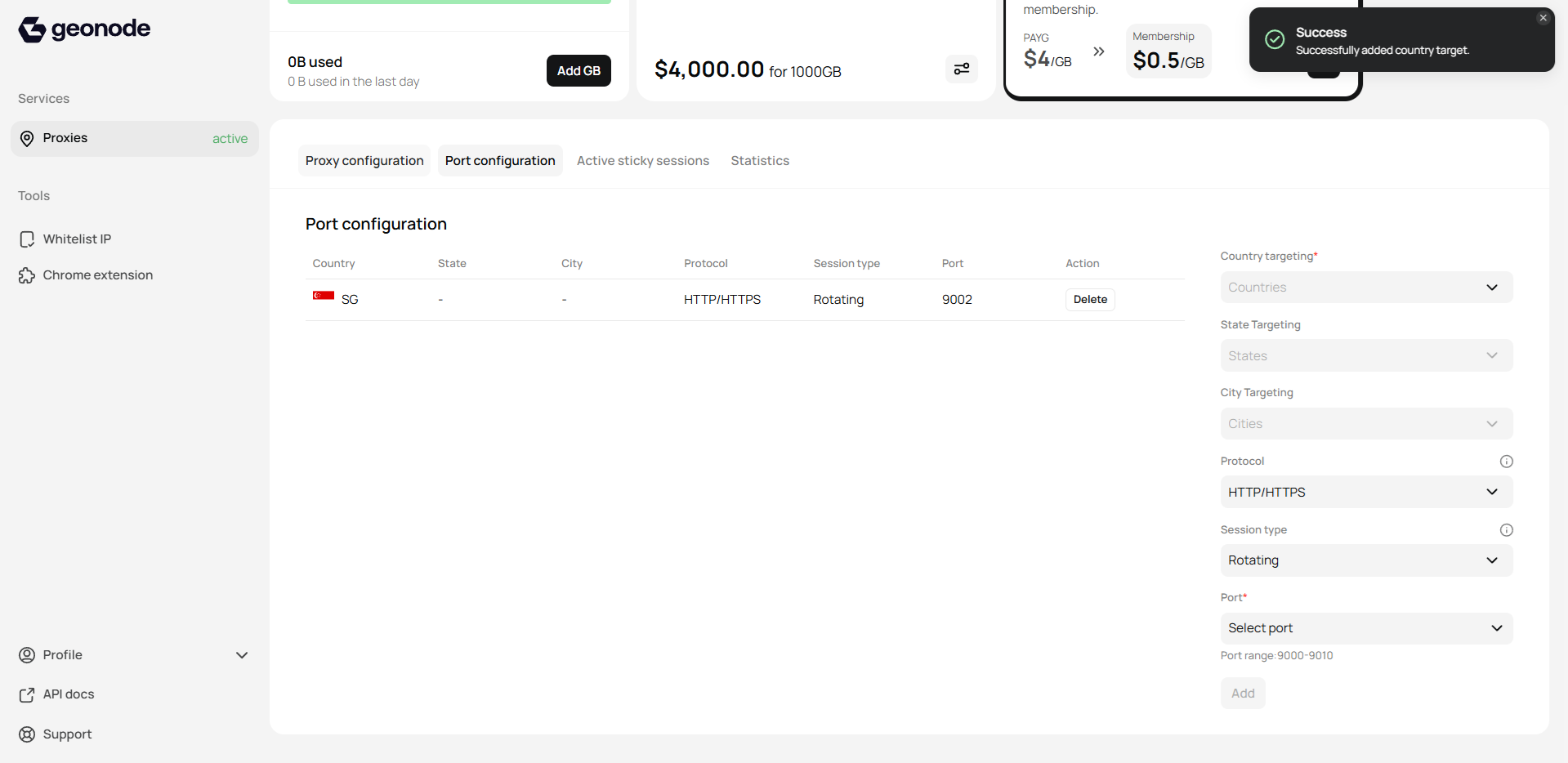 ## **Port in Use**
* Once added, the configured ports and locations will have that port and can't be used by any other country.
## **Port in Use**
* Once added, the configured ports and locations will have that port and can't be used by any other country.
 ## **Final Result**
You're now ready to manage your ports efficiently using Geonode's Port Configuration feature!
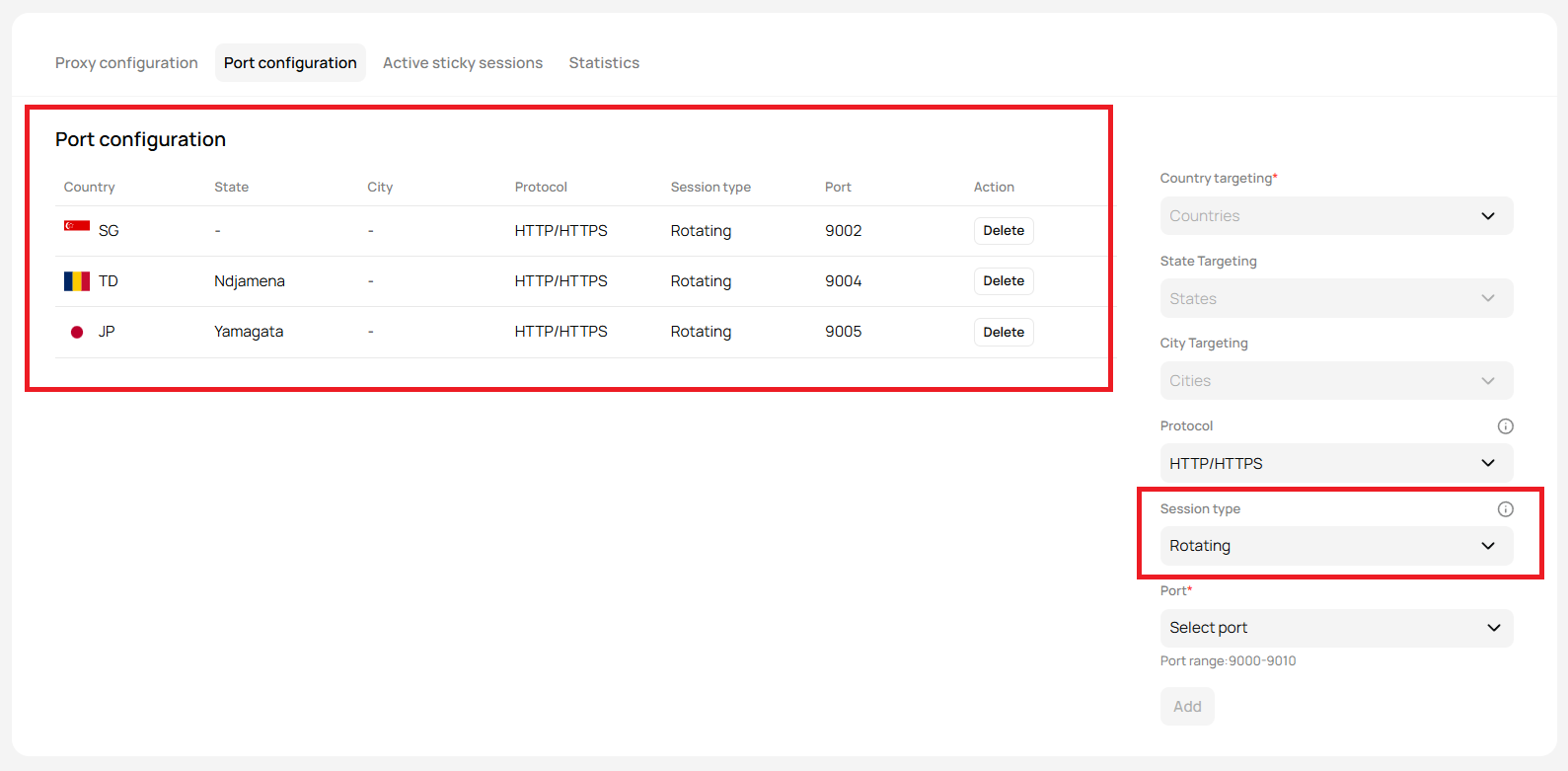
* For Rotating:
## **Final Result**
You're now ready to manage your ports efficiently using Geonode's Port Configuration feature!
* For Rotating:
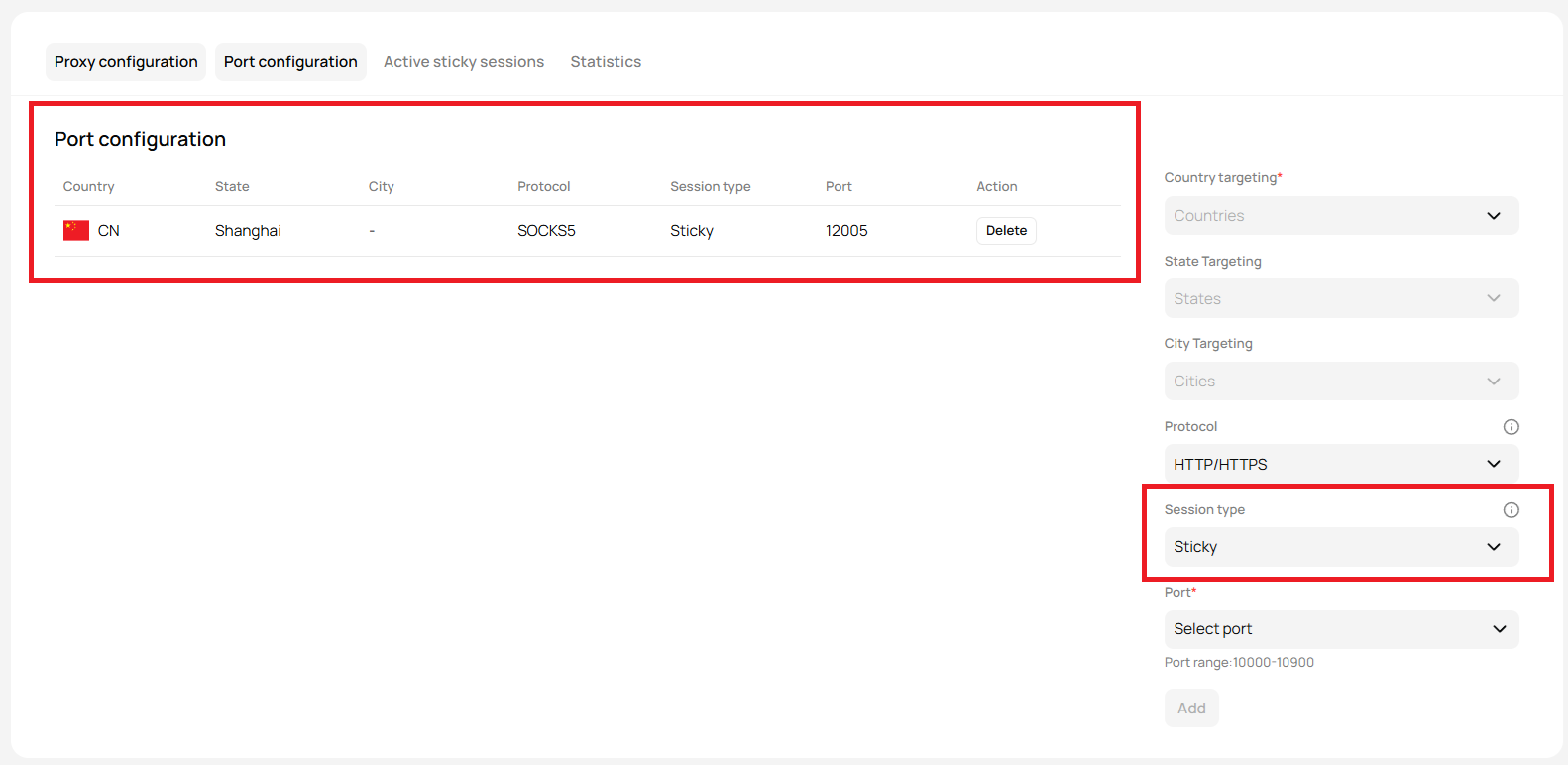
 * For Sticky:
 ## **Troubleshooting Tips**
* **Add button is disabled:** Ensure all required fields (Country and Port) are selected.
* **Cannot select State/City:** These options only become active after selecting a country.
* **Connection issues:** Double-check your protocol and session type settings.
If you encounter any issues, refer to the [**troubleshooting section**](/knowledge-base/troubleshooting/proxy-not-working) or [**Geonode support**](/additional-resources/support).
## **FAQs**
The "Add" button remains disabled if mandatory fields are not selected. Ensure you have chosen a country and a port before proceeding.
No, once a port is assigned to a specific country, it cannot be used for another country. You need to select a different port for each configuration.
With the "Rotating" session type, your IP address will change periodically, making it ideal for tasks like web scraping or automation.
Yes, you can select the protocol from the dropdown during configuration. However, SOCKS5 support depends on your plan and use case.
State and city targeting only become available after selecting a country. If they remain disabled, check if a country has been selected first.
## **Troubleshooting Tips**
* **Add button is disabled:** Ensure all required fields (Country and Port) are selected.
* **Cannot select State/City:** These options only become active after selecting a country.
* **Connection issues:** Double-check your protocol and session type settings.
If you encounter any issues, refer to the [**troubleshooting section**](/knowledge-base/troubleshooting/proxy-not-working) or [**Geonode support**](/additional-resources/support).
## **FAQs**
The "Add" button remains disabled if mandatory fields are not selected. Ensure you have chosen a country and a port before proceeding.
No, once a port is assigned to a specific country, it cannot be used for another country. You need to select a different port for each configuration.
With the "Rotating" session type, your IP address will change periodically, making it ideal for tasks like web scraping or automation.
Yes, you can select the protocol from the dropdown during configuration. However, SOCKS5 support depends on your plan and use case.
State and city targeting only become available after selecting a country. If they remain disabled, check if a country has been selected first.