> ## Documentation Index
> Fetch the complete documentation index at: https://geonode.mintlify.site/llms.txt
> Use this file to discover all available pages before exploring further.
# Profile Settings
> Learn how to manage your personal details, update passwords, and delete your account in Geonode.
***
Your Profile Settings in Geonode allow you to manage your personal information, change your password, and delete your account if needed.
***
## Step 1: Access Profile Settings
1. Log in to your Geonode account.
2. Navigate to the Profile section from the left sidebar.
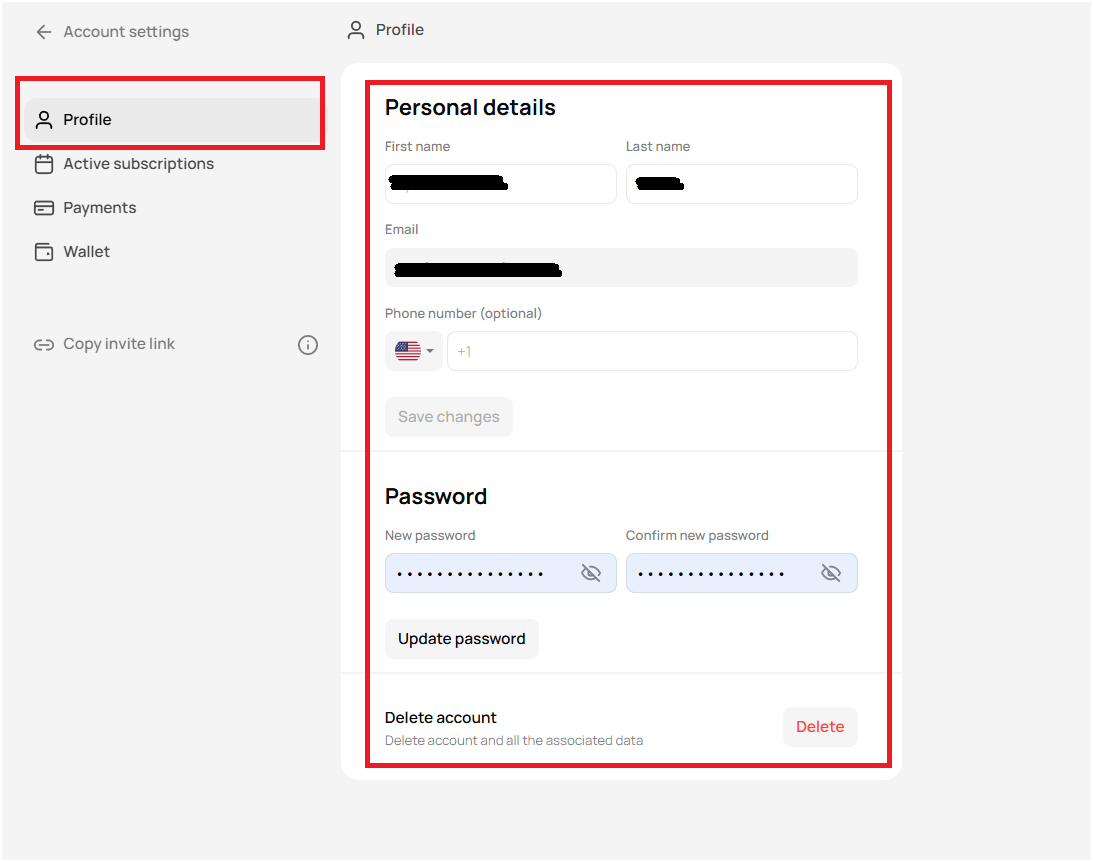
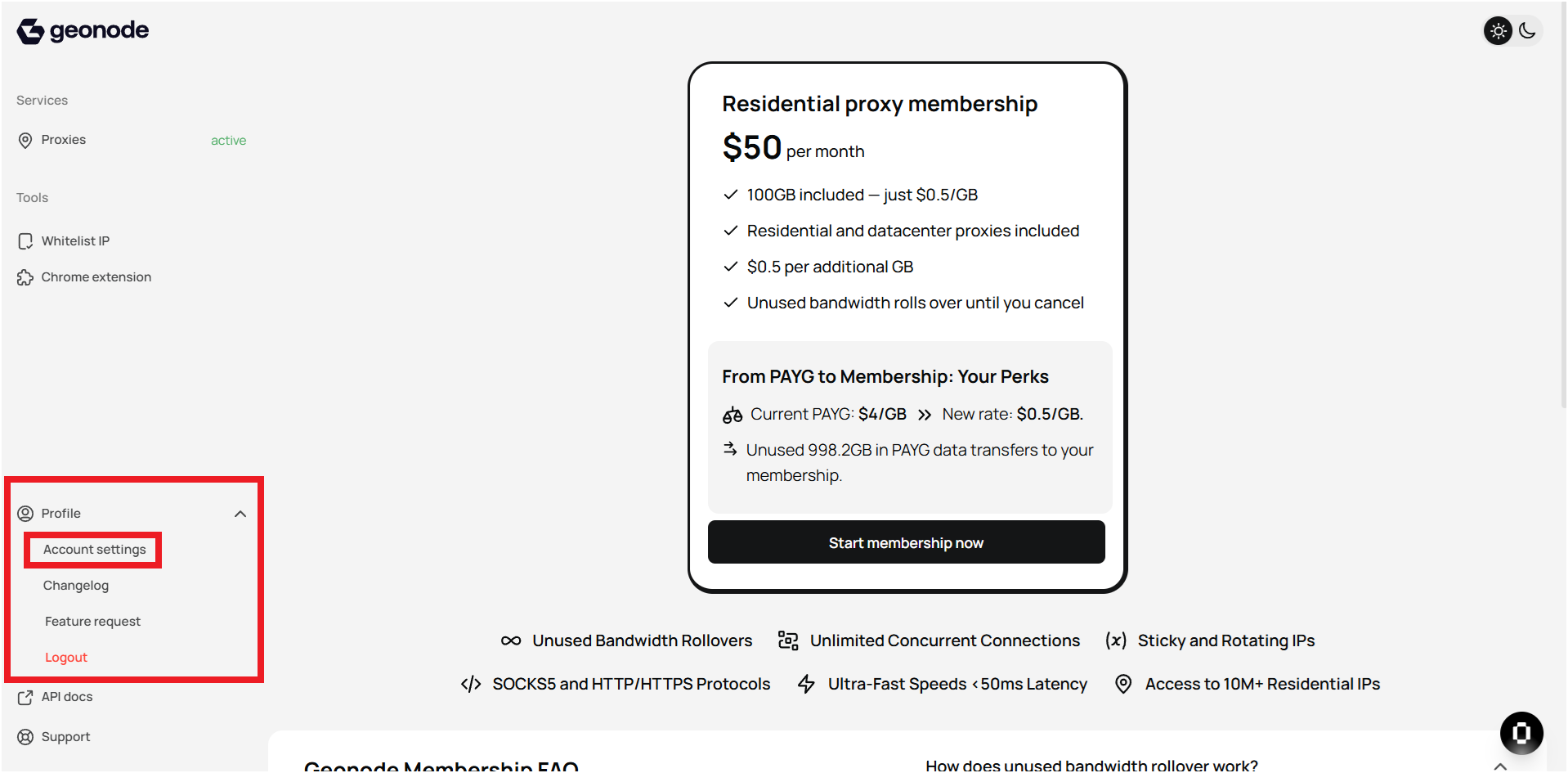 3. Access to profile details
 ***
## Step 2: Update Personal Details
In the Personal Details section, you can:
* Edit your First Name and Last Name.
* Update your phone number.
* Your email address is fixed and cannot be changed.
Click Save Changes after making any updates.
***
## Step 3: Change Your Password
1. Scroll down to the Password section.
2. Enter a new password and confirm it.
3. Click Update Password to save the changes.
***
## Step 2: Update Personal Details
In the Personal Details section, you can:
* Edit your First Name and Last Name.
* Update your phone number.
* Your email address is fixed and cannot be changed.
Click Save Changes after making any updates.
***
## Step 3: Change Your Password
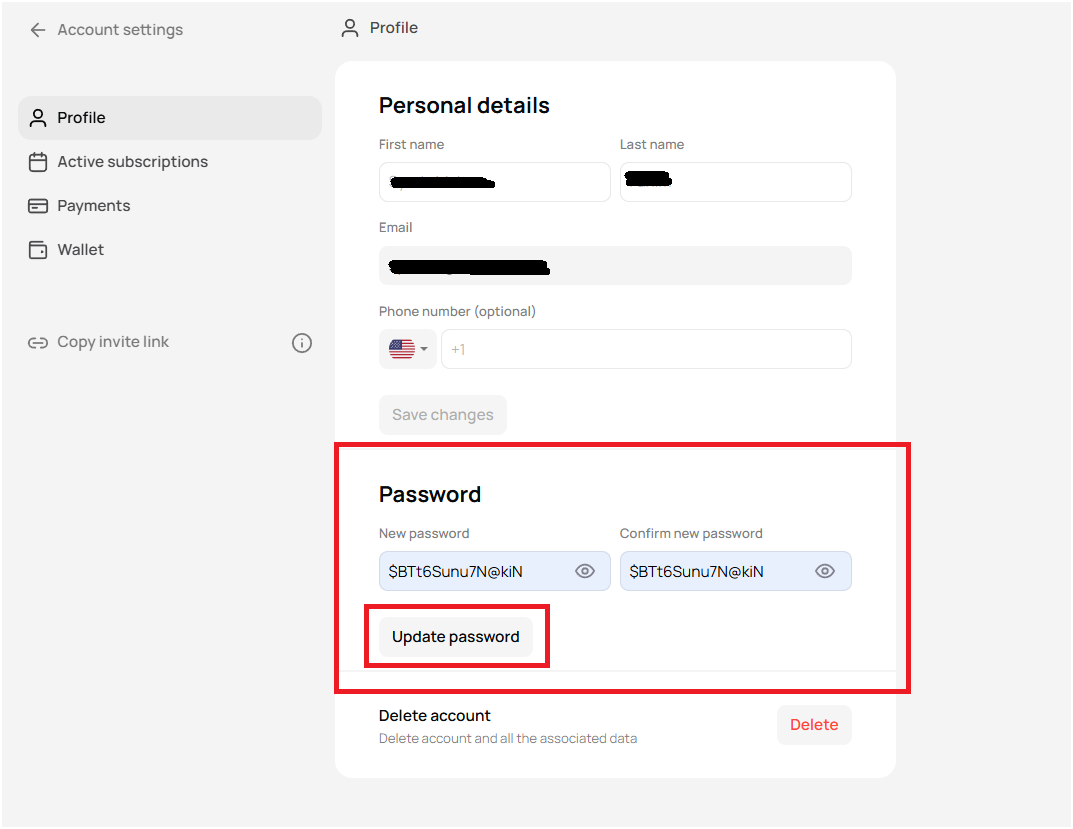
1. Scroll down to the Password section.
2. Enter a new password and confirm it.
3. Click Update Password to save the changes.
 ***
## Step 4: Delete Your Account
If you want to permanently delete your Geonode account, follow these steps:
1. Scroll down to the Delete Account section.
2. Click the Delete button.\\
***
## Step 4: Delete Your Account
If you want to permanently delete your Geonode account, follow these steps:
1. Scroll down to the Delete Account section.
2. Click the Delete button.\\
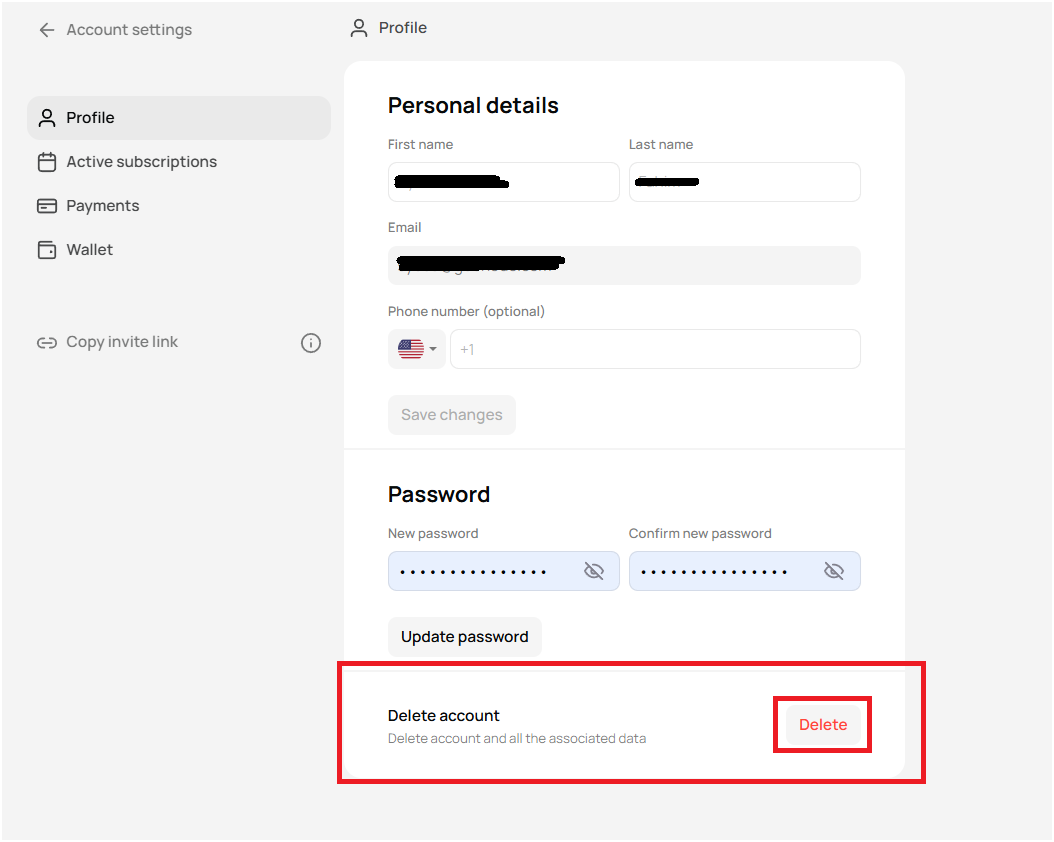 3. Confirm the action—this will remove your account and all associated data.
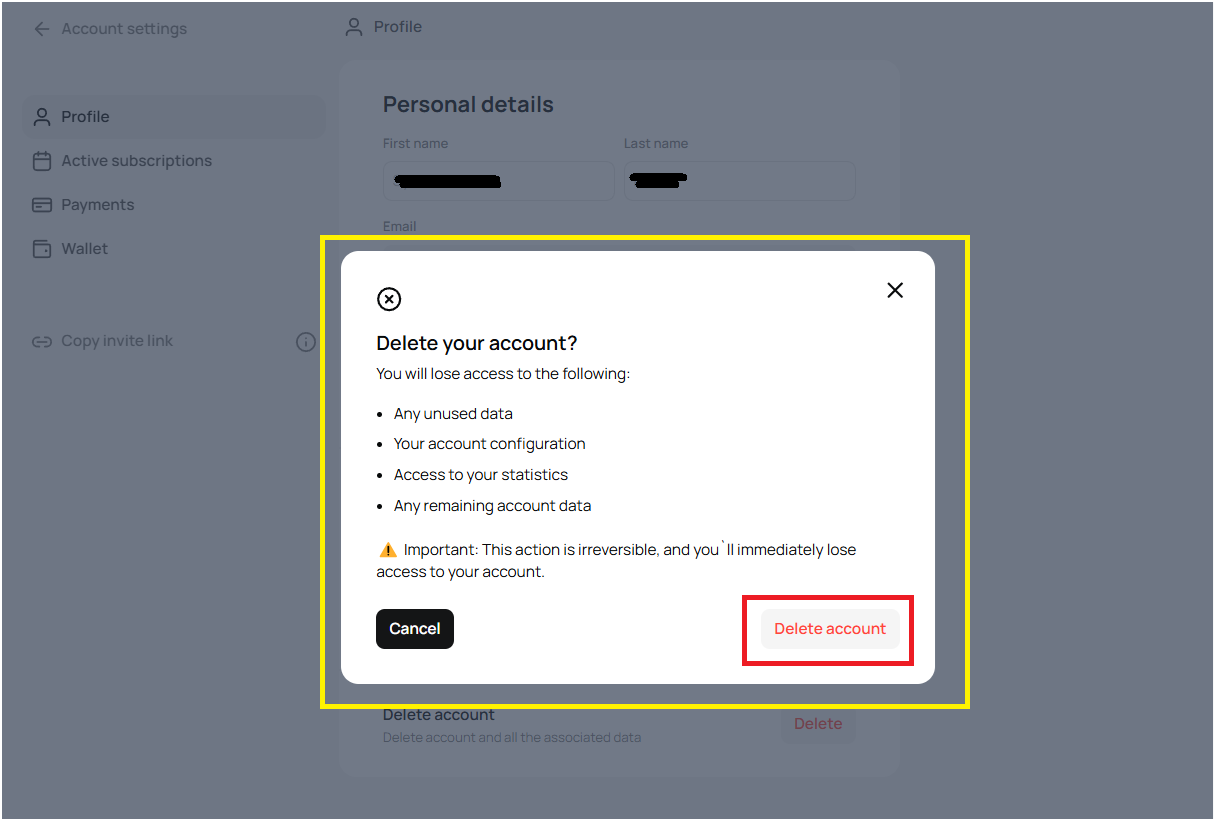 Deleting your account does not automatically cancel any active services linked to it. You may still be billed for ongoing subscriptions or services. If you wish to stop all charges, make sure to cancel any active subscriptions or contact Geonode Support before proceeding with account deletion.
***
## Final Tips
* Keep your profile details updated to avoid account issues.
* Use a strong password to enhance account security.
* Deleting your account is irreversible, so proceed with caution.
* If you encounter payment issues, contact [Geonode Support](https://geonode.com/contact).
By managing your Profile Settings effectively, you can ensure a smooth and secure experience on Geonode.
***
Deleting your account does not automatically cancel any active services linked to it. You may still be billed for ongoing subscriptions or services. If you wish to stop all charges, make sure to cancel any active subscriptions or contact Geonode Support before proceeding with account deletion.
***
## Final Tips
* Keep your profile details updated to avoid account issues.
* Use a strong password to enhance account security.
* Deleting your account is irreversible, so proceed with caution.
* If you encounter payment issues, contact [Geonode Support](https://geonode.com/contact).
By managing your Profile Settings effectively, you can ensure a smooth and secure experience on Geonode.
***