> ## Documentation Index
> Fetch the complete documentation index at: https://geonode.mintlify.site/llms.txt
> Use this file to discover all available pages before exploring further.
# How to Set Proxy Session Lifetime
> Learn how to configure and control session lifetime for Geonode proxies.
***
This guide will help you understand how to configure session lifetime to control how long each proxy session remains active.
***
## **What is Session Lifetime?**
Session lifetime defines how long a proxy connection remains active before resetting. Setting the right session duration helps in:
* Maintaining session consistency for account management.
* Optimizing proxy usage for scraping, automation, and security.
* Preventing detection by avoiding frequent IP changes.
***
## **Ways to Configure Session Lifetime**
There are two methods to set session lifetime in Geonode:
1. **Using the Dashboard** (covered in this guide).
2. **Using an API request** → [Set Session Lifetime via API](/api-reference/sticky-session/get-create).
***
## **Step 1: Select a Service or Product**
Ensure you have an\*active Residential Proxies plan in your Geonode account.
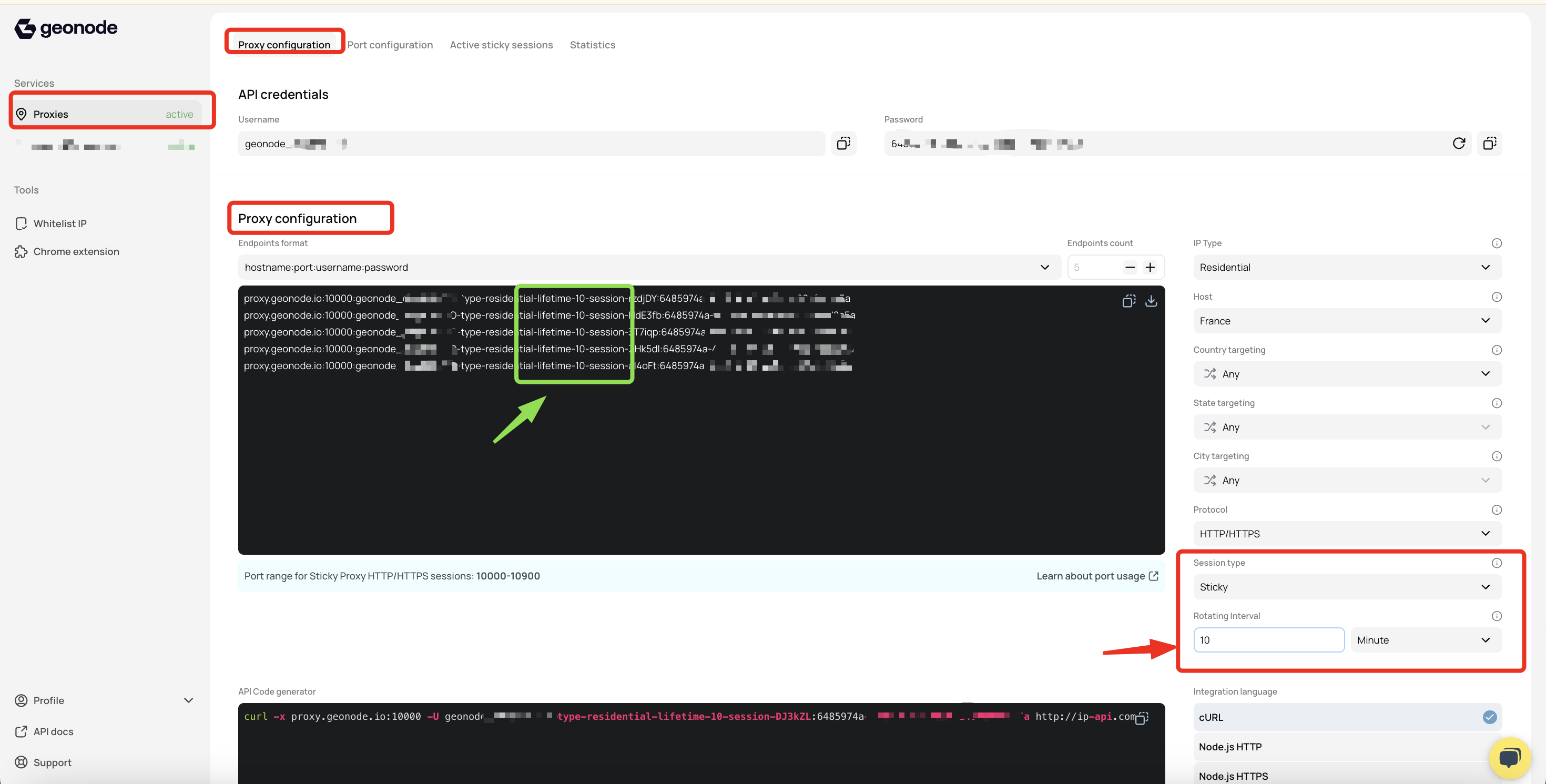
* From the side navigation menu, click on Proxy Configuration to begin configuring your proxies.
 ***
## **Step 2: Configure Your Proxy**
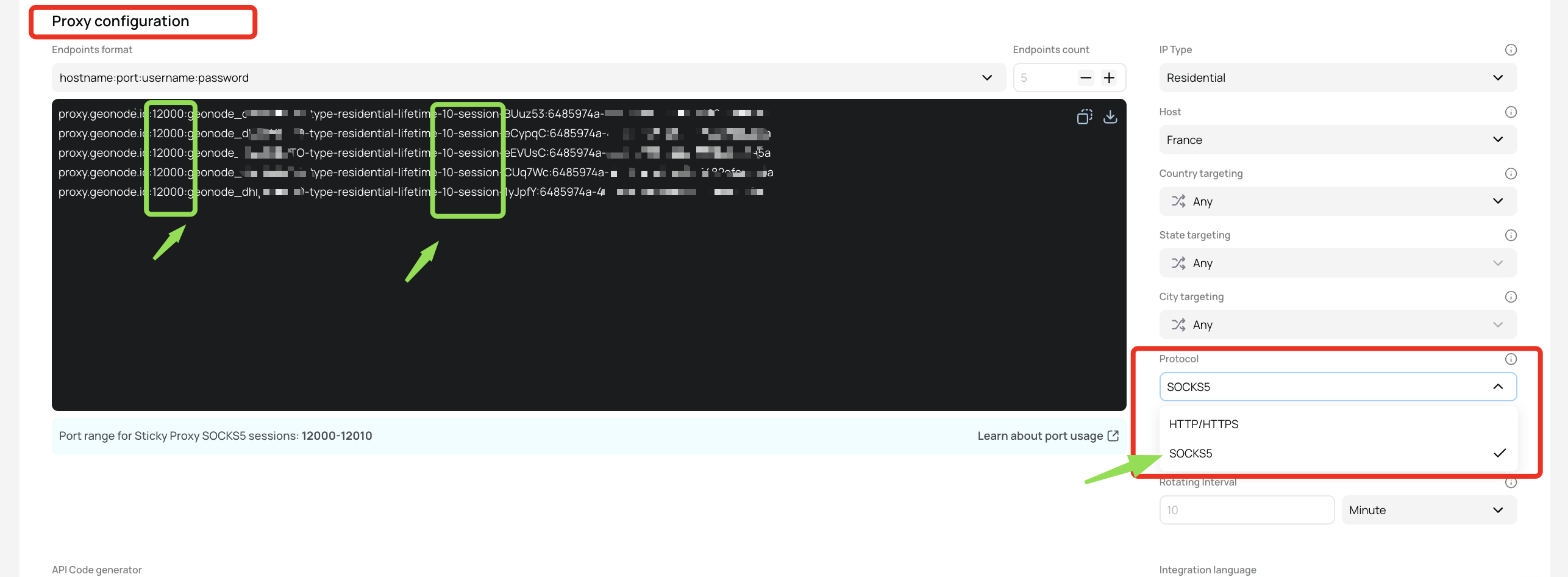
1. Under Proxy Configuration, select the Sticky proxy type.
2. Choose a proxy protocol: HTTP/HTTPS or SOCKS5.
* Changing session lifetime automatically updates the generated proxy list.
* The modified session duration will apply to all selected sessions.
***
## **Step 2: Configure Your Proxy**
1. Under Proxy Configuration, select the Sticky proxy type.
2. Choose a proxy protocol: HTTP/HTTPS or SOCKS5.
* Changing session lifetime automatically updates the generated proxy list.
* The modified session duration will apply to all selected sessions.
 ***
## **Step 3: Set the Session Lifetime**
By default, the session lifetime is 10 minutes, but you can adjust it based on your needs.
* **Minimum session duration:** **3 minutes**
* **Maximum session duration:** **24 hours (1440 minutes)**
You can set the session lifetime in either \*\*minutes or hours, depending on your preference.
***
## **Step 3: Set the Session Lifetime**
By default, the session lifetime is 10 minutes, but you can adjust it based on your needs.
* **Minimum session duration:** **3 minutes**
* **Maximum session duration:** **24 hours (1440 minutes)**
You can set the session lifetime in either \*\*minutes or hours, depending on your preference.
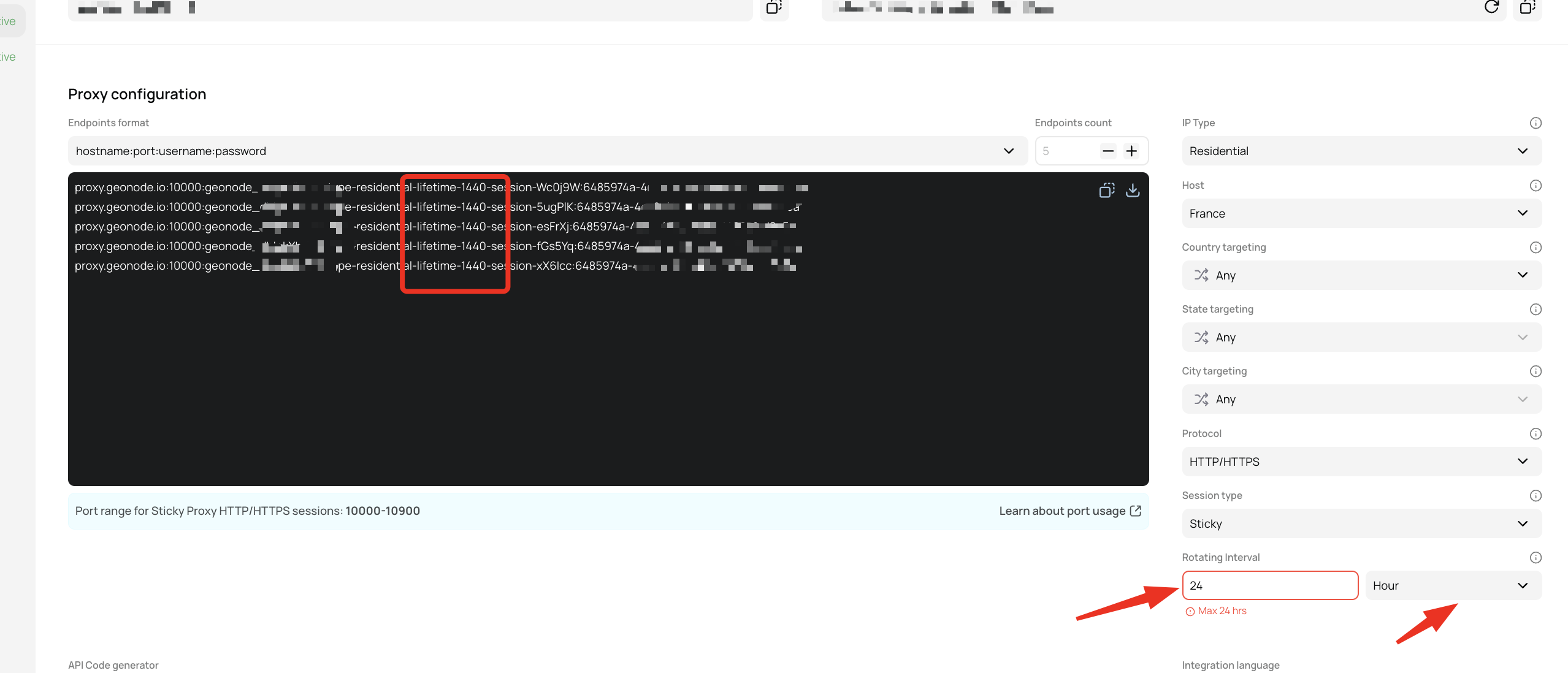 You can configure this setting in the Session Settings or adjust it via an API request
***
## **Final Tips**
* Choose shorter session durations for frequent IP changes (e.g., scraping).
* Use longer sessions for tasks that require consistent IPs (e.g., account management).
* Adjust settings via the dashboard or API for more control.
By configuring session lifetime correctly, you can optimize performance, maintain stable connections, and avoid detection.
You can configure this setting in the Session Settings or adjust it via an API request
***
## **Final Tips**
* Choose shorter session durations for frequent IP changes (e.g., scraping).
* Use longer sessions for tasks that require consistent IPs (e.g., account management).
* Adjust settings via the dashboard or API for more control.
By configuring session lifetime correctly, you can optimize performance, maintain stable connections, and avoid detection.