> ## Documentation Index
> Fetch the complete documentation index at: https://geonode.mintlify.site/llms.txt
> Use this file to discover all available pages before exploring further.
# API Code Generator
> Generate code for API requests.
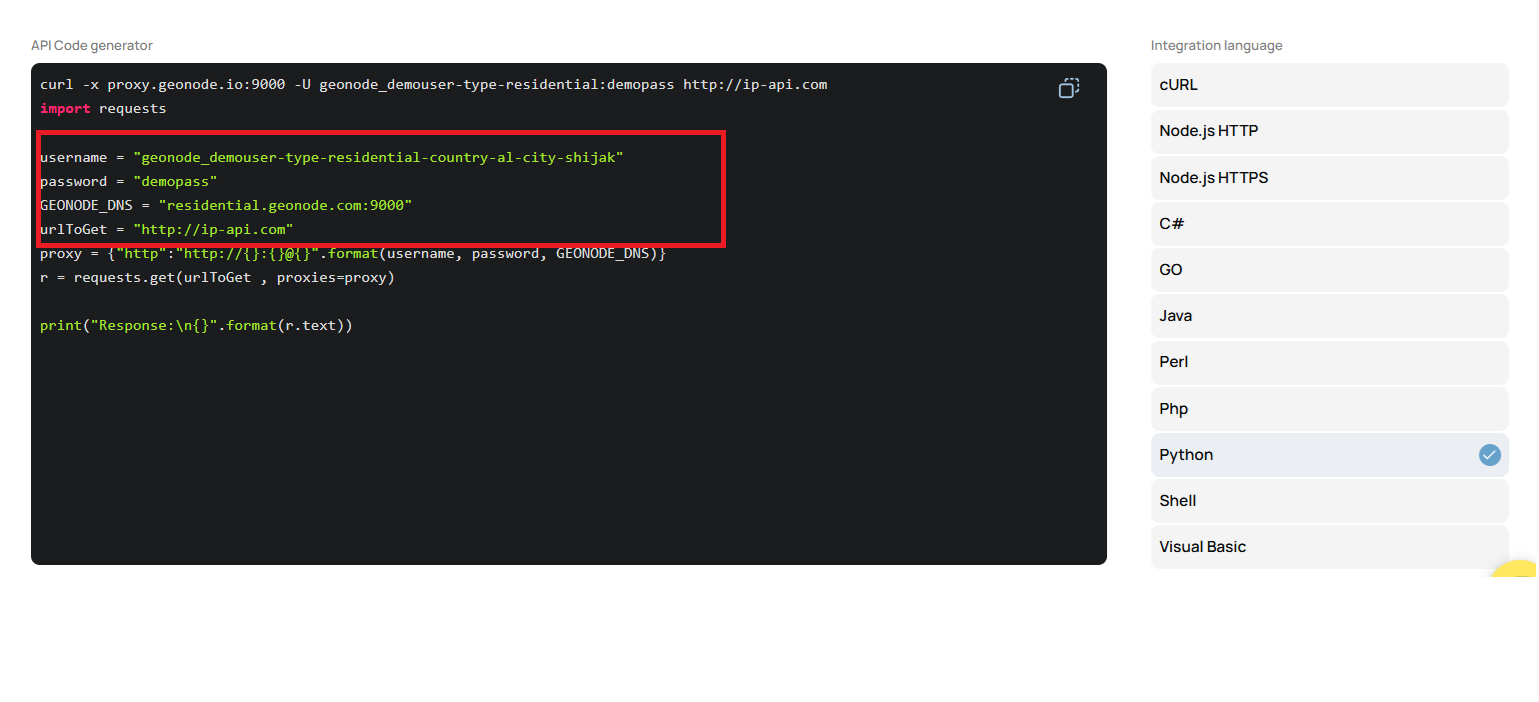
The API Code Generator helps you create ready-to-use code snippets based on your configured proxy parameters.
Follow this guide to generate your first API endpoint and run the code seamlessly.
## **Step 1: Configure Your Proxy**
Start by following the [How to use the Endpoint Generator to configure Proxy](/proxy-setup/advance-configuration/proxy-configuration) to create your first endpoint. This step ensures you have the necessary proxy settings configured for code generation.
## **Step 2: Access the API Code Generator**
Once your endpoint is created:
1. Scroll down to the API Code Generator section.
2. You will see the code automatically generated based on your configured proxy parameters.
3. The code is available in multiple programming languages, including:
* Python
* Node.js
* Go
* And more.
 ## **Step 3: Copy and Paste the Code**
1. Choose your preferred programming language.
2. Copy the generated code.
3. Paste it into your favorite code editor.
\*\*
## **Step 4: Run the Code**
Example: Using Python in Visual Studio Code (VS Code).
Before running the code, ensure all necessary packages are installed. In the provided Python example, the `requests` package is used.
### **Execute the Code**
After installing the package (as per your selected language if required):
1. Save the file in your editor.
2. Run the script using the following command:
python app.py
## **Step 5: Verify the Output**
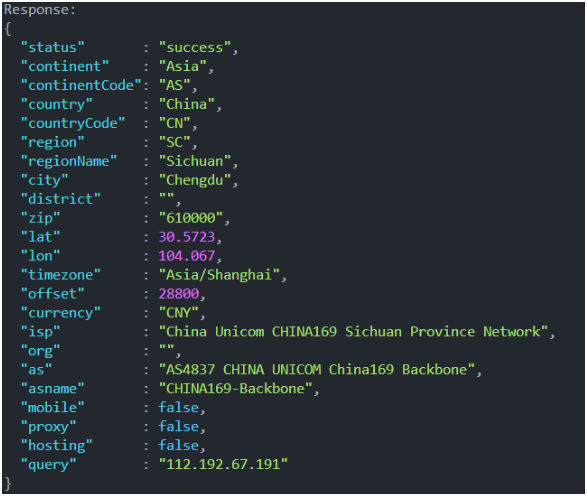
The output should display the expected results based on your API call. If the output looks as expected, your code is successfully integrated with the API.
## **Step 3: Copy and Paste the Code**
1. Choose your preferred programming language.
2. Copy the generated code.
3. Paste it into your favorite code editor.
\*\*
## **Step 4: Run the Code**
Example: Using Python in Visual Studio Code (VS Code).
Before running the code, ensure all necessary packages are installed. In the provided Python example, the `requests` package is used.
### **Execute the Code**
After installing the package (as per your selected language if required):
1. Save the file in your editor.
2. Run the script using the following command:
python app.py
## **Step 5: Verify the Output**
The output should display the expected results based on your API call. If the output looks as expected, your code is successfully integrated with the API.
 You're now ready to generate and run API code with ease!