> ## Documentation Index
> Fetch the complete documentation index at: https://geonode.mintlify.site/llms.txt
> Use this file to discover all available pages before exploring further.
# New Sticky Session
> How to create a new sticky session
***
This guide will walk you through the steps to create a new sticky session with Geonode.
***
## **What are Sticky Proxies?**
Sticky proxies are a powerful feature that allows you to maintain the same IP address over a longer period, making them ideal for tasks requiring a stable connection, such as managing social media accounts, web scraping, or conducting long-term data collection.
➡️ Follow this guide to learn more about Sticky Session Proxies: [What are Sticky Session Proxies?](/knowledge-base/proxy-service-guide/sticky-session)
***
## **Geonode's Sticky Proxies Range**
Geonode provides specific port ranges for sticky sessions to ensure a stable IP address over time, via both HTTP and SOCKS5 protocols. The following ports are used for sticky sessions:
* **HTTP**: Ports 10000-10900
* **SOCKS5**: Ports 12000-12010
***
## **How to Create a Sticky Session with Geonode API**
Before you can create a sticky session, you need to configure your proxy settings in the Geonode dashboard.
### **1. Configure Your Proxy Settings**
1. Log in to the **Geonode Dashboard**.
2. Navigate to the **Proxies** section on the left panel.
3. Select the **Session Type** as **Sticky**.
4. Choose the rotating time (minimum of 3 minutes for the minute interval and 1 hour for the hourly interval).
5. Leave all other options as default if you have no specific preferences.
Your configuration should look something like this:
* **IP Type**: Residential
* **Gateway**: France
* **Port Range**: HTTP 10000-10900
* **Session Type**: Sticky Session
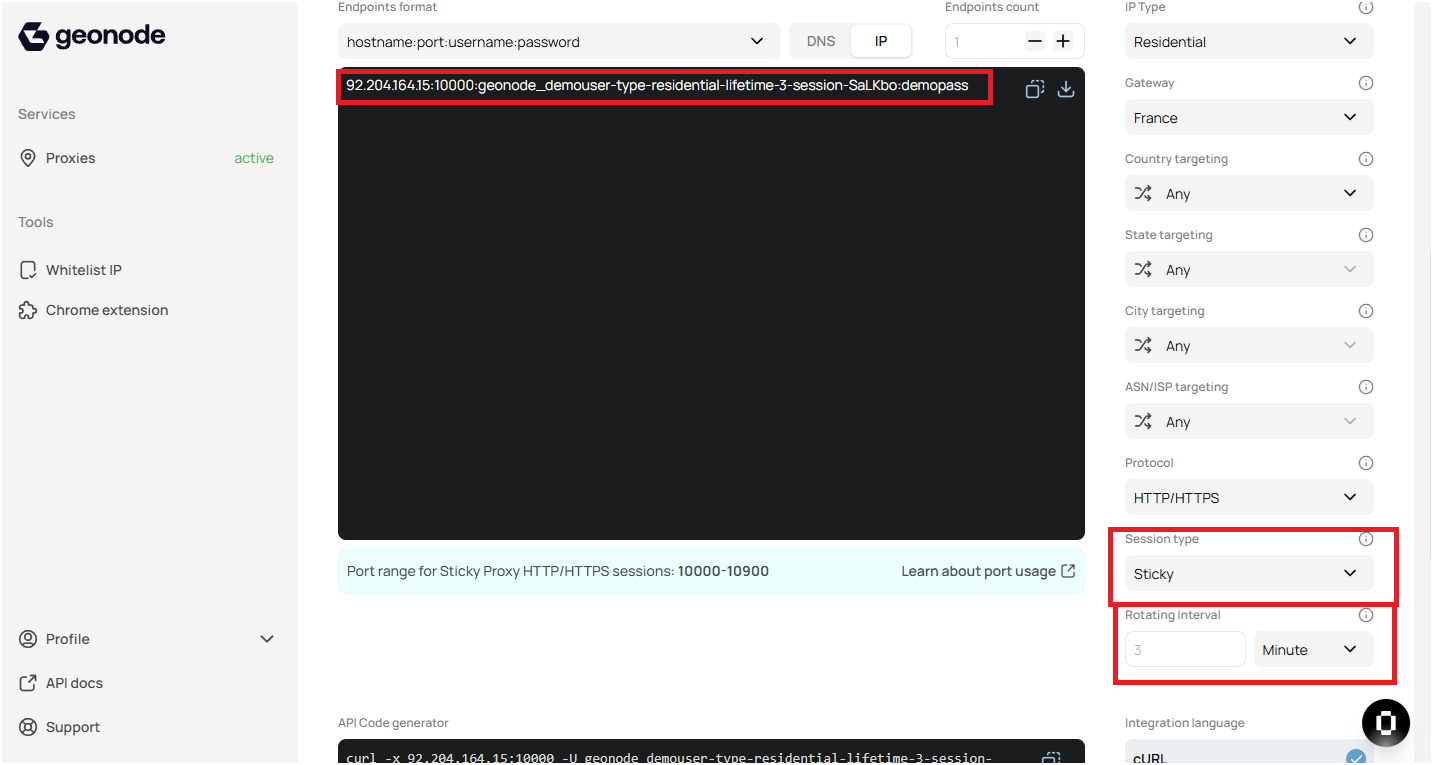 6. Once your proxy configuration is ready, copy the proxy endpoint, which will look something like this:
```
92.204.164.15:10000:geonode_demouser-type-residential-lifetime-3-RAOnwR
```
Here:
* **IP**: `92.204.164.15`
* **Port**: `10000`
* **Username**: `geonode_demouser-type-residential-lifetime-3-RAOnwR`
* **Password**: `demopass`
You will use this configuration to connect to Geonode's API or any other proxy management tools like Chrome extensions, etc.
***
### **2. Calling the Geonode API to Create a Sticky Session**
To create a sticky session using Geonode's API, you need to make a request to the endpoint `:` and add the username you created by configuring the proxy from the dashboard.
You can do this using a **cURL** request like this:
```bash theme={null}
curl -x 92.204.164.15:10000 " \
--user "geonode_demouser-type-residential-lifetime-3-RAOnwR:demopass" \
--url "http://ip-api.com/json" \
--header "Accept: application/json"
```
➡️ Follow this Sticky session API Guide to learn more about the API [Create a New Sticky Session](/api-reference/sticky-session/get-create)
***
## **Monitor Proxy Usage**
Geonode also provides monitoring tools to track the usage of your proxies. You can check for errors, usage statistics, and ensure that the proxies are working as expected.
➡️ Follow this guide to learn in-depth: [How to Check Proxy Usage](/functionalities/general-proxy-usage/usage-stats-analytics)
***
## **Verify Proxy Connection**
To ensure the proxy is working, check your IP address using an online tool or follow this guide:
* [Verify Proxy Connection](/proxy-setup/verify-proxy-connection)
***
If you encounter any issues, refer to the [**troubleshooting section**](/knowledge-base/troubleshooting/proxy-not-working) or [**Geonode support**](/additional-resources/support).
***
## **FAQs**
Sticky sessions maintain the same IP for a longer duration, while rotating proxies assign a new IP with each request.
The duration of a sticky session depends on the settings you configure, such as the session lifetime (in minutes). You can specify a session length when creating the session.
Once a sticky session is created, the parameters like IP address and session type cannot be changed. However, you can release the session and create a new one with different parameters.
***
6. Once your proxy configuration is ready, copy the proxy endpoint, which will look something like this:
```
92.204.164.15:10000:geonode_demouser-type-residential-lifetime-3-RAOnwR
```
Here:
* **IP**: `92.204.164.15`
* **Port**: `10000`
* **Username**: `geonode_demouser-type-residential-lifetime-3-RAOnwR`
* **Password**: `demopass`
You will use this configuration to connect to Geonode's API or any other proxy management tools like Chrome extensions, etc.
***
### **2. Calling the Geonode API to Create a Sticky Session**
To create a sticky session using Geonode's API, you need to make a request to the endpoint `:` and add the username you created by configuring the proxy from the dashboard.
You can do this using a **cURL** request like this:
```bash theme={null}
curl -x 92.204.164.15:10000 " \
--user "geonode_demouser-type-residential-lifetime-3-RAOnwR:demopass" \
--url "http://ip-api.com/json" \
--header "Accept: application/json"
```
➡️ Follow this Sticky session API Guide to learn more about the API [Create a New Sticky Session](/api-reference/sticky-session/get-create)
***
## **Monitor Proxy Usage**
Geonode also provides monitoring tools to track the usage of your proxies. You can check for errors, usage statistics, and ensure that the proxies are working as expected.
➡️ Follow this guide to learn in-depth: [How to Check Proxy Usage](/functionalities/general-proxy-usage/usage-stats-analytics)
***
## **Verify Proxy Connection**
To ensure the proxy is working, check your IP address using an online tool or follow this guide:
* [Verify Proxy Connection](/proxy-setup/verify-proxy-connection)
***
If you encounter any issues, refer to the [**troubleshooting section**](/knowledge-base/troubleshooting/proxy-not-working) or [**Geonode support**](/additional-resources/support).
***
## **FAQs**
Sticky sessions maintain the same IP for a longer duration, while rotating proxies assign a new IP with each request.
The duration of a sticky session depends on the settings you configure, such as the session lifetime (in minutes). You can specify a session length when creating the session.
Once a sticky session is created, the parameters like IP address and session type cannot be changed. However, you can release the session and create a new one with different parameters.
***